Your phone as a second screenThe Phone HUD in the Laby App
The Laby App turns your phone into a second screen for LabyMod, with a live map and your HUD widgets right next to the game.
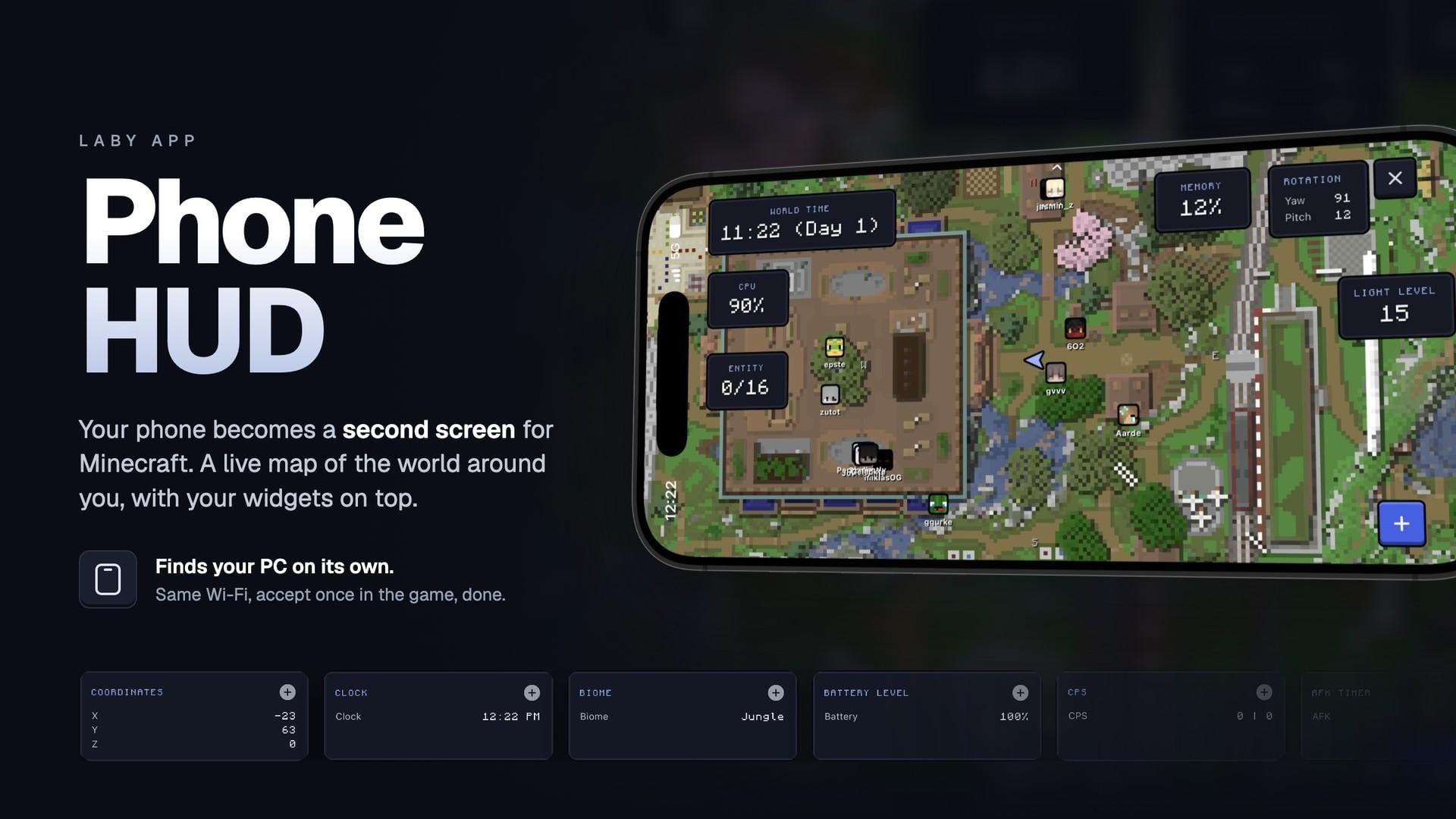
Coordinates, the server you are on, how many players are online, your ping: a lot of what is worth knowing in Minecraft sits in your HUD, right on top of the game you are trying to see.
The Phone HUD puts it on your phone instead. The Laby App shows a live map of the world around you with your widgets on top, and the monitor is left to the game.
With heading up, the map turns as you look around
What's on the phone
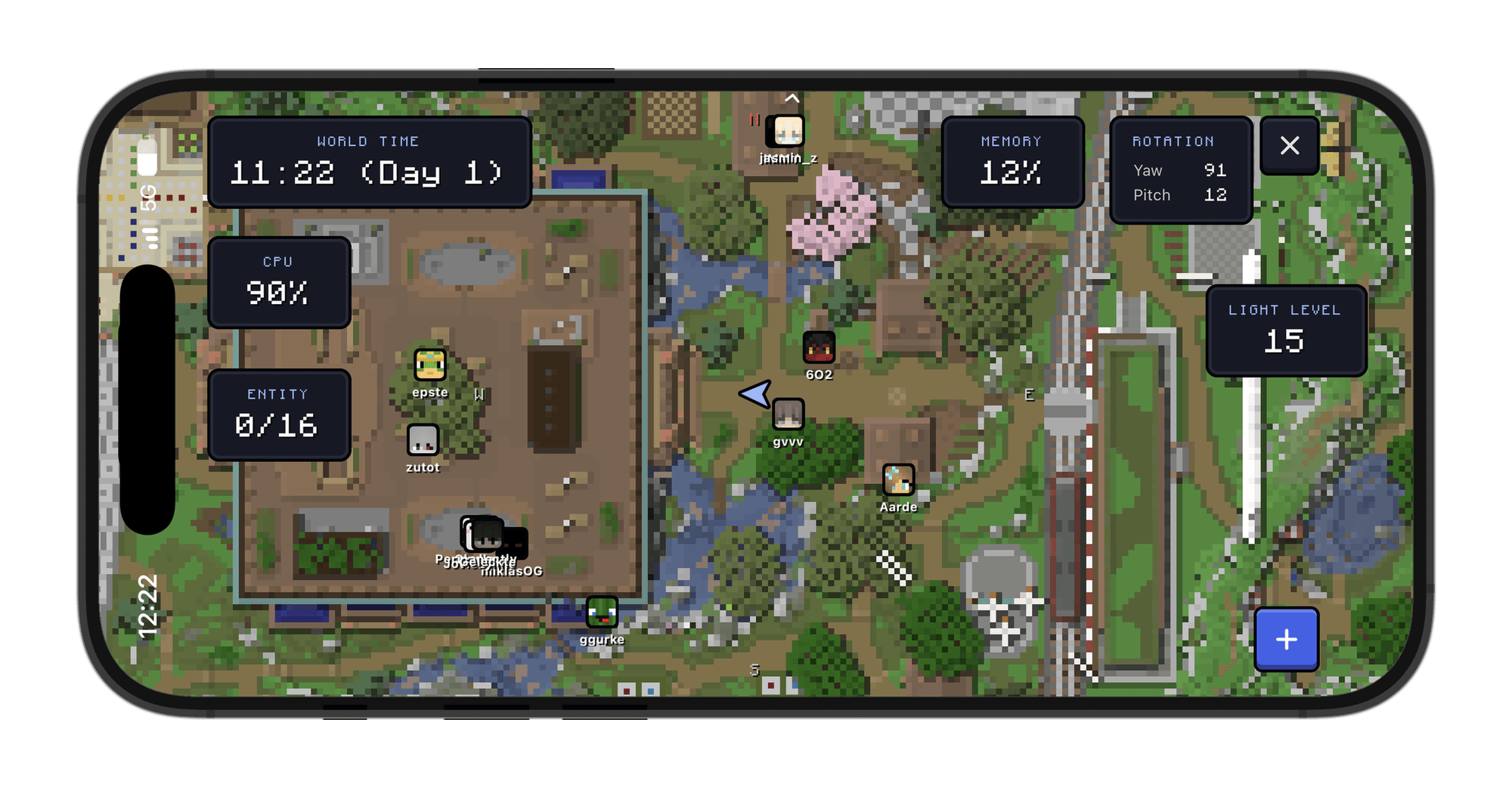
The map is centred on you and follows every step. Other players show up as their skin heads with their names, waypoints as coloured dots whose names fade in as you get closer, and anything outside the picture waits at the edge with an arrow pointing at it.
Tap the map to switch between north up and the direction you are facing, and pinch to zoom.
On top go the widgets you pick: coordinates, ping, FPS, the server address, the player count, the clock and whatever else you like. They update live while you play.
On servers that do not allow minimaps the map is switched off, and the widgets keep working.
Your own layout
Press the + button to open the widget list. Every tile already shows its live values, so you know what you are adding. Tap a widget to put it on the board, tap it again to take it off.
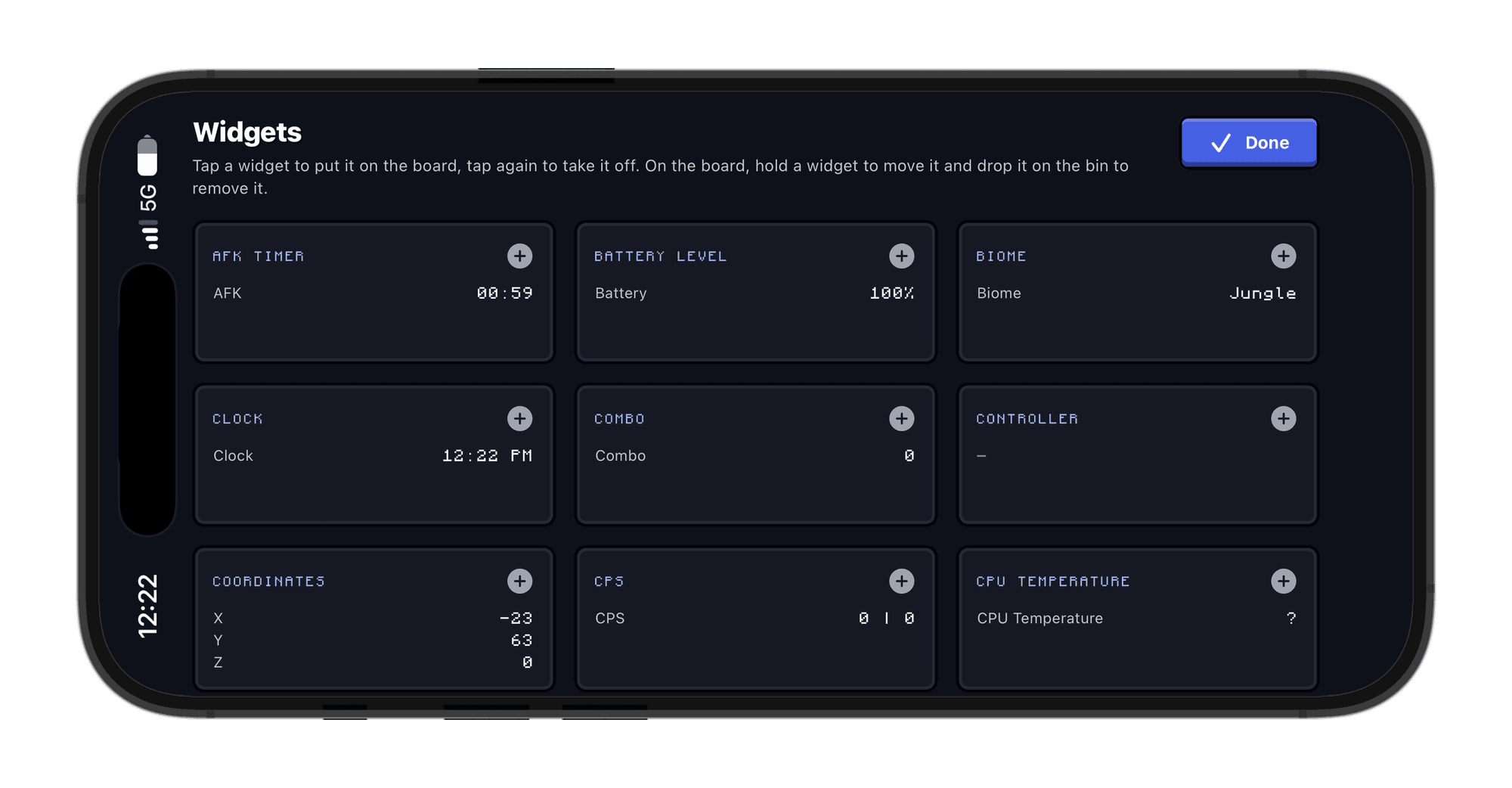
To move a card, hold it until it lifts, then drag it. It snaps to the edges of the other cards and to the middle of the screen, and a dashed frame keeps it clear of the notch. Drop it on the bin at the bottom to remove it.
Every text widget in LabyMod can go on the phone, including the ones addons bring along. They do not have to be on your PC HUD for that, so you can take the coordinates off your screen and still read them on the phone.
While it is connected the phone stays in landscape and keeps its screen on.
Setting it up
In LabyMod, switch on External Devices. You find it in the mod list under Utility and in the settings, and it stays off until you switch it on. For the map to show up on your phone, also switch on the Minimap in the mod list.
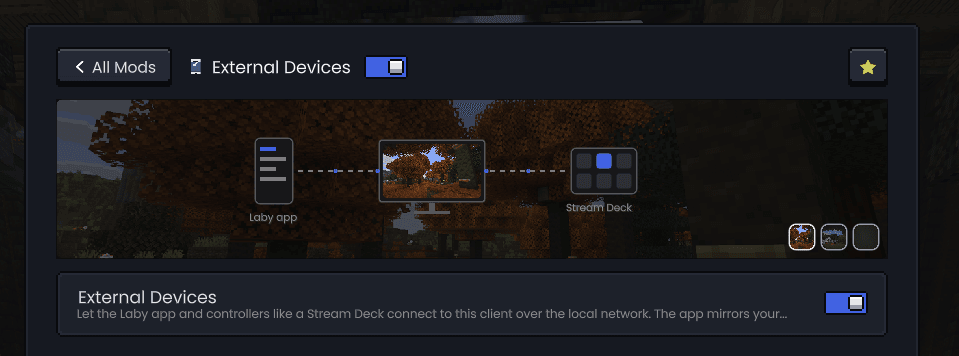
Your phone has to be on the same Wi-Fi as your PC, because the two talk to each other directly, without a server in between. Then open the Laby App: while LabyMod is running, a card on the home screen takes you straight to the HUD. You also find it under HUD in the settings.
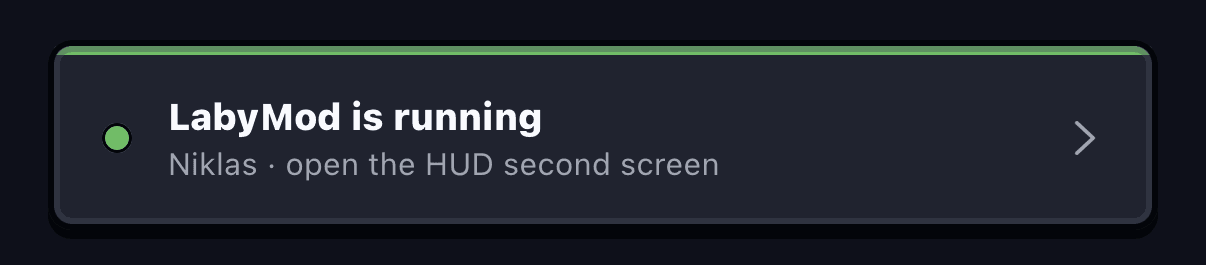
The app finds your PC by itself. LabyMod asks in the game whether the phone may connect: click Accept. The pairing is remembered, so next time the HUD connects without asking. Switching External Devices off removes every paired device.
If the app does not find your PC, check that your firewall lets LabyMod through, or enter the PC's address by hand.
Try it
The Phone HUD is in the Laby App for iOS and Android, on the App Store and on Google Play. Update the app and LabyMod, switch on External Devices, and put your phone next to the keyboard.
Found a bug or have an idea for it? Tell us on our feedback platform.
Mots-clés
Read next
 Laby
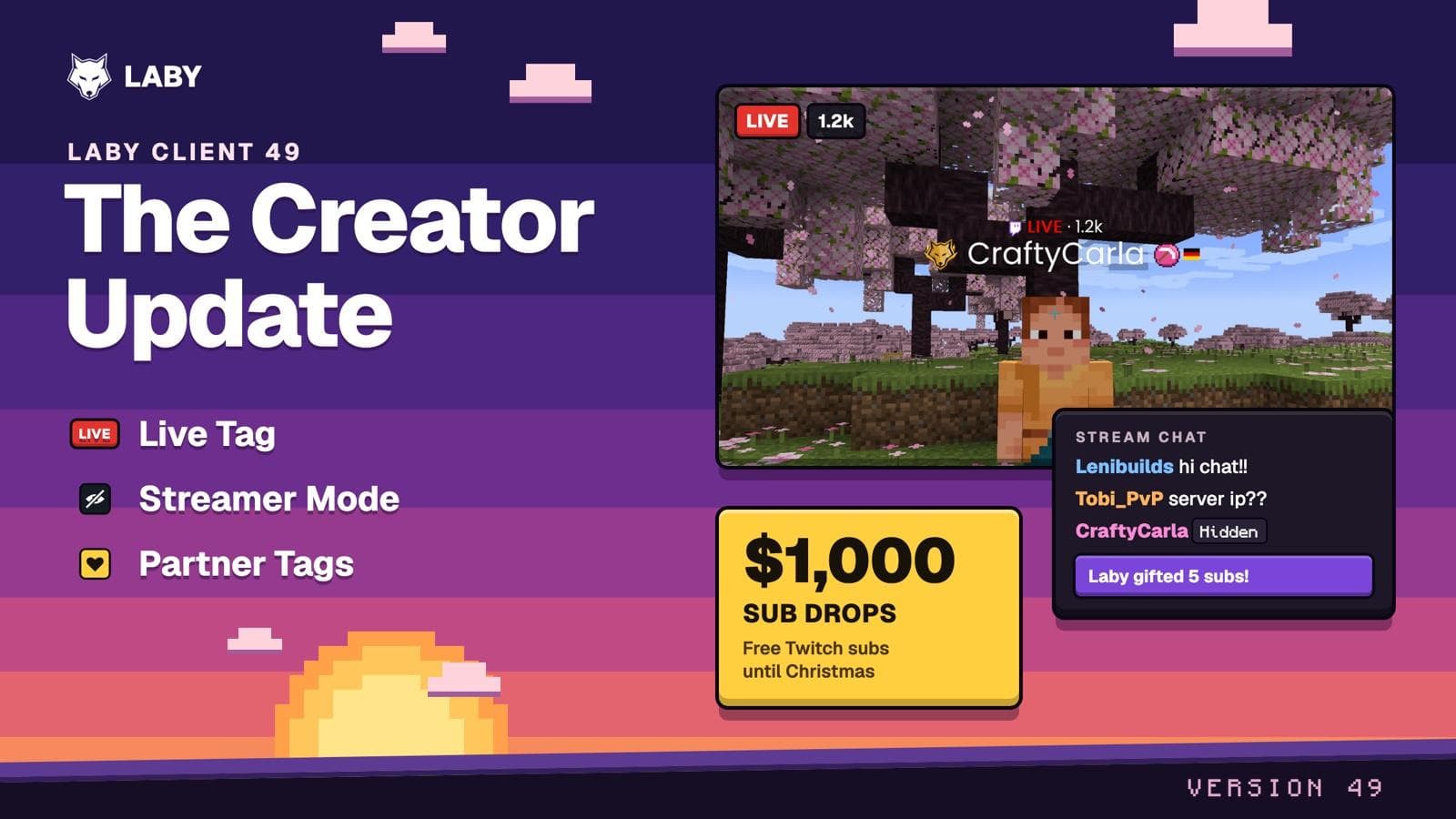
LabyThe Creator Update - Live tags, Streamer Mode, partner tags and $1,000 for streamers
A LIVE tag above streamers, a Streamer Mode that turns on with OBS, partner tags for creators and $1,000 in Twitch subs until Christmas.
 Laby
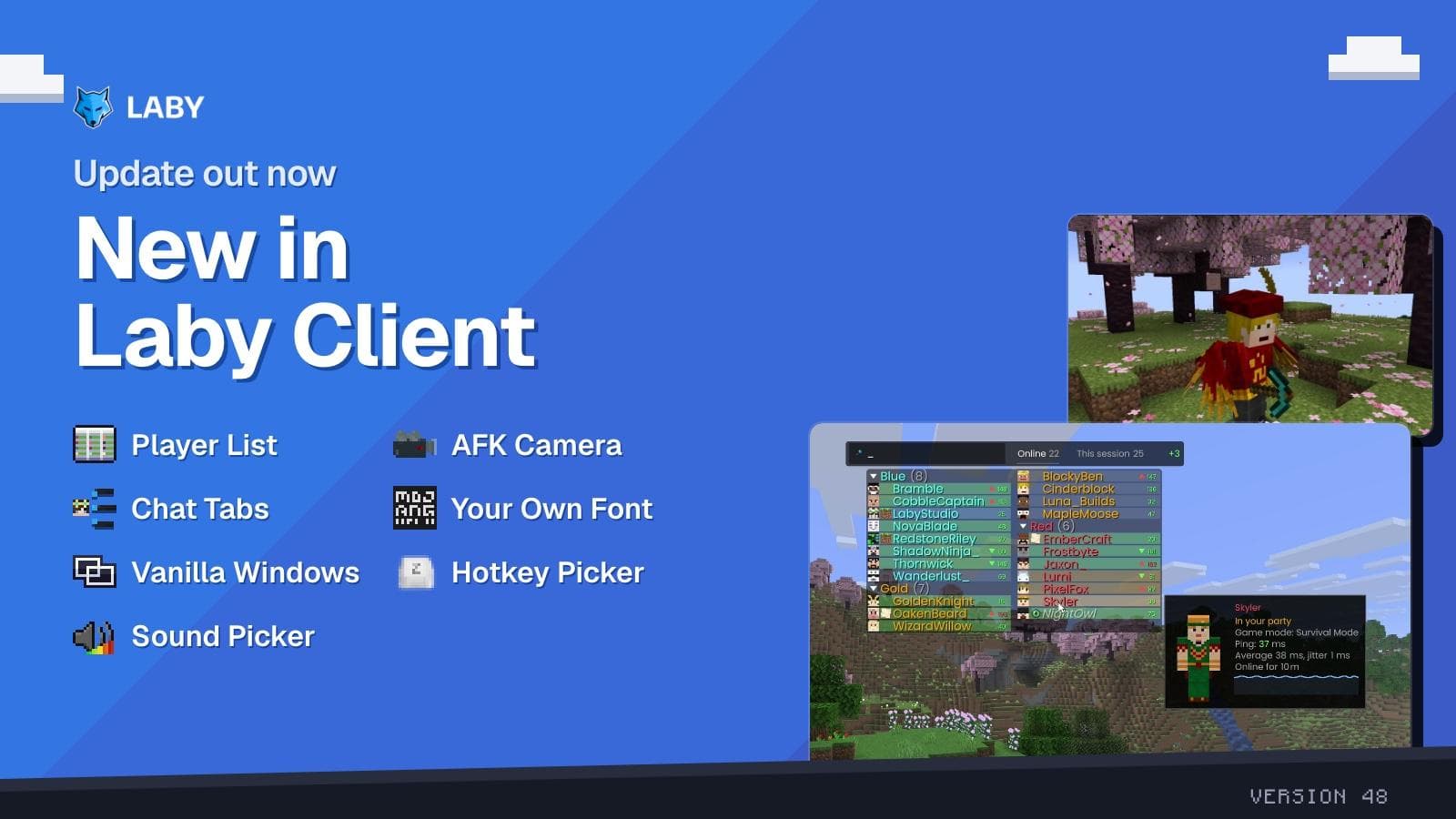
LabyA smarter player list, the AFK Camera and chat tabs in a few clicks
New in Laby Client: a player list with Interactive Mode, the AFK Camera, a chat tab wizard, your own font everywhere and new windows for Vanilla.
 Laby
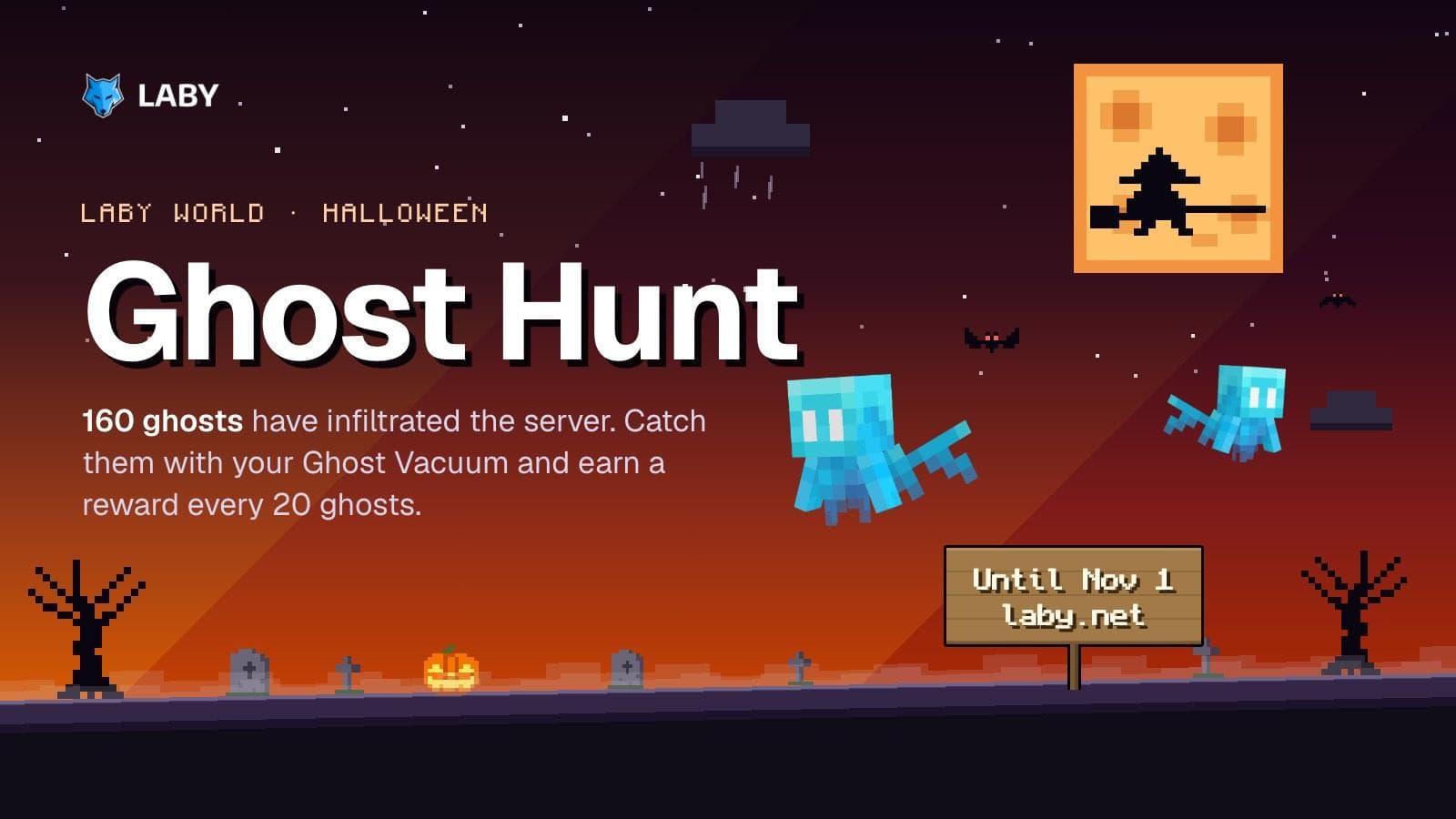
LabyGhost Hunt on Laby World: catch 160 ghosts until November 1
160 ghosts have infiltrated Laby World. Catch them with the Ghost Vacuum until November 1 and unlock loot boxes and three Halloween cosmetics.
Comments (0)