Minecraft HUD ModuSenin HUD'un. Senin düzenin.
Koordinatlar, FPS, zırh, iksirler, CPS ve daha fazlası için 58 widget. Sağ Shift'e bas, HUD Widget'larını Düzenle butonuna tıkla ve onları istediğin yere sürükle. Kendiliğinden yerine otururlar.
- Ücretsiz
- Minecraft 1.8.9'dan en yeni sürüme kadar
- Windows, macOS ve Linux
Sürükle, yapıştır, çoklu seç, ölçekle
Sağ Shift'e bas ve HUD Widget'larını Düzenle butonuna tıkla: Mod menüsü kenara çekilir ve HUD artık senin. Bir widget'ı sürükle; ekranın kenarlarına, orta çizgiye ya da başka bir widget'ın hemen altına yapışır ve orada bağlı kalır. Shift veya Ctrl ile tıklayarak aynı anda birkaç widget seçersin, köşe tutamaçları da bir widget'ı yarım boyuttan bir buçuk katına kadar ölçekler.
- Sağ Shift (ya da seçtiğin bir tuş) mod menüsünü açar, editör bir tık uzakta
- Ekran kenarlarına, orta çizgiye ve diğer widget'lara yapışır
- Bir widget'ı serbestçe yerleştirmek için Ctrl'ye (Mac'te Cmd) basılı tut
- Shift veya Ctrl ile tıklama birkaçını, Ctrl + A hepsini seçer
- 0,5 ile 1,5 arası ölçek, 1,0'da ve komşu widget'ta yapışır
- Sağ tıkla: Ayarlar, Kaldır, Sıfırla ve Ölçeği Sıfırla
- Bir widget yanaştığında veya bağlandığında ses
Oyunun HUD'unun olduğu yere yanaşan widget'lar
Ekranda bazı noktalar tam bir widget için yapılmıştır: zırhın ve elindeki eşyalar için hotbar'ın iki yanında üçer yer, scoreboard için ekran kenarları, action bar için hotbar'ın üstündeki satır. Oraya bir widget bırak, yanaşık kalsın. Eşya Yer Çekimi eşyaların boş yerlere aşağı kaymasını sağlar, böylece zırhında hiç boşluk kalmaz.
- Zırh ve iki el varsayılan olarak hotbar'ın yanında durur
- Hotbar'ın her iki yanında üçer tane, toplam altı eşya yeri
- Ekranın sol veya sağ kenarında scoreboard
- Can, Doygunluk, Action Bar, Boss Bar ve Başlık için yerler
- Nişangahta Blok Kırma İlerlemesi ve Damage Direction için yerler
- Eşya Yer Çekimi varsayılan olarak açık
Bir parça kırılmak üzereyken Envanter modunun Durability Warning özelliği seni uyarır.
Her etiketi en iyi okuduğun şekilde süsle
Her metin widget'ının bir etiketi, bir değeri ve etraflarında parantezler var, her biri kendi seçtiğin renkte. [FPS] 143'ten FPS: 143'e ya da sadece değere kadar on formattan birini seç. Ekranın sağ tarafında format ters döner, böylece değerler kenarda hizalanır. Kendi iç boşluğun ve yuvarlak köşeleriyle bir arka plan kutusu, metni karın üstünde bile okunur tutar.
- On format, varsayılan [Etiket] Değer
- Etiket, parantezler ve değer için ayrı renkler
- Renk, iç boşluk, dış boşluk ve yuvarlaklıkla arka plan
- Satır yüksekliği %50 ile %150 arası
- Ekranın sağ tarafında Ayna Biçimlendirme
- Kendi etiket metnin, 32 karaktere kadar
- Tek tık bir stili tüm widget'lara uygular
Koordinatlardan işlemci sıcaklığına
Veri, dünya ve sunucu, oyuncu, eşyalar, zaman, sistemin ve kanalların. İsme ya da neye ihtiyacın olduğuna göre ara, örneğin "zırh" veya "pil". PvP Stats ve Totem Pops gibi dövüş widget'ları PvP modlarına ait, FPS widget'ı ise Dynamic FPS ile çok iyi gider.
58 widget

FPS
Saniyedeki kare sayın.
Veri
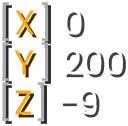
Koordinatlar
Tek satırda ya da üç satırda X, Y ve Z; istersen pusula yönü ve biyomla birlikte.
Veri
Rotasyon
Baktığın tam açı: yaw ve pitch.
Veri
Biyom
İçinde durduğun biyom.
Veri
F-Direction
Baktığın yön, F3 ekranındaki gibi.
Veri
Ping
Sunucuya olan gecikmen, ne kadar iyi olduğuna göre renkli.
Veri
Hedeflenen Blok
Nişangahının altındaki bloğun koordinatları.
Veri
Yön Göstergesi
Üstte, hangi yöne baktığını gösteren bir pusula çubuğu.
Veri
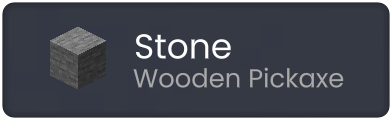
Waila
Baktığın blok veya mob, ayrıntılarıyla.
Veri
Varlıklar
Etrafında kaç varlığın render edildiği.
Dünya ve Sunucu
Oyuncu Sayısı
Sunucuda kaç oyuncunun çevrim içi olduğu.
Dünya ve Sunucu
Sunucu Adresi
Oynadığın sunucunun adresi.
Dünya ve Sunucu
Işık Seviyesi
Durduğun yerdeki ışık seviyesi, mobların nerede doğabileceğini görmek için.
Dünya ve Sunucu
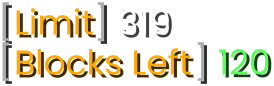
Yükseklik Sınırı
İnşa sınırı, Y değerin ve daha kaç blok üst üste koyabileceğin.
Dünya ve Sunucu
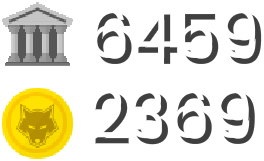
Ekonomi Ekranı
Bu bilgiyi gönderen sunucularda nakit ve banka bakiyen.
Dünya ve Sunucu
Danger Warner
Sana saldırmak isteyen tehlikeli mobları gösterir.
Dünya ve Sunucu
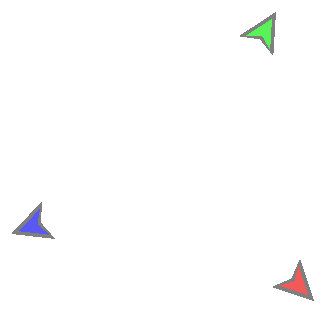
Takım Arkadaşı Yönleri
Sunucuların izin verdiği yerlerde, nişangahın etrafında takım arkadaşlarını gösteren oklar.
Dünya ve Sunucu
CPS
Saniyedeki sol ve sağ tıklamaların.
Oyuncu
Kombo
Vurulmadan bir oyuncuya art arda yaptığın vuruşlar.
Oyuncu
Totem Pops1.11+
Patlattığın totemler ve kalanlar.
Oyuncu
Reach Display
Birine vurduğunda ne kadar uzakta olduğun.
Oyuncu
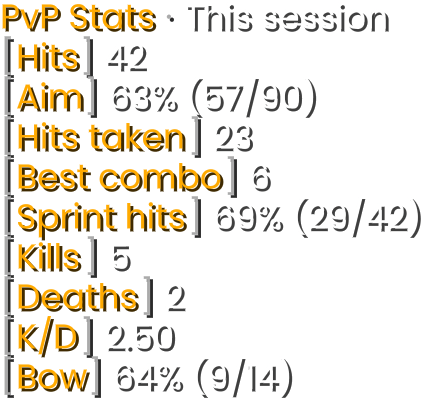
PvP Stats
Oturum ve gün başına vuruşlar, isabet, kombolar ve öldürmeler.
Oyuncu
Hız
Ne kadar hızlı hareket ettiğin, saniyede blok cinsinden.
Oyuncu
İksir EtkileriVarsayılan olarak açık
Aktif etkilerin ve ne kadar süreceği.
Oyuncu
Can
Canın, kalp ya da sayı olarak.
Oyuncu
Doygunluk
Açlığın ve gizli doygunluk.
Oyuncu
Paper Doll
Ekranda oyuncunun küçük bir 3D modeli.
Oyuncu
Blok Kırma İlerlemesi
Bir bloğu kırmada ne kadar ilerlediğin.
Oyuncu
Damage Direction
Hasarın nereden geldiği, nişangahının etrafında.
Oyuncu
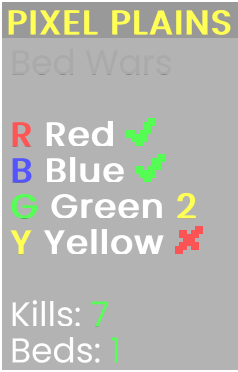
ScoreboardVarsayılan olarak açık
Sunucunun scoreboard'unu taşı, ölçekle ve yeniden tasarla.
Vanilla Alternatifleri
Action Bar
Hotbar'ının üstündeki metni taşı ve ölçekle.
Vanilla Alternatifleri
Boss Bar
Boss can çubuğunu taşı, ölçekle ya da gizle.
Vanilla Alternatifleri
Başlık
Sunucuların sana gösterdiği başlıkları taşı ve ölçekle.
Vanilla Alternatifleri
Totem Animasyonu1.11+
Totem patlama animasyonunu seçtiğin bir kutuda oynatır.
Vanilla Alternatifleri
Oklar
Kaç okun olduğu.
Eşya
Ana ElVarsayılan olarak açık
Elindeki eşya ve dayanıklılığı.
Eşya
Diğer ElVarsayılan olarak açık1.9+
Diğer elindeki eşya ve dayanıklılığı.
Eşya
MiğferVarsayılan olarak açık
Miğferin ve dayanıklılığı.
Eşya
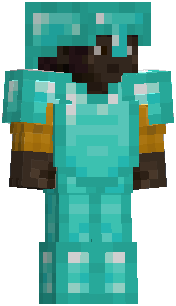
GöğüslükVarsayılan olarak açık
Göğüslüğün ve dayanıklılığı.
Eşya
TozlukVarsayılan olarak açık
Tozluğun ve dayanıklılığı.
Eşya
ÇizmeVarsayılan olarak açık
Çizmelerin ve dayanıklılıkları.
Eşya
Envanter Takipçisi
Hangi eşyaları topladığın, attığın veya kullandığın.
Eşya
Eşya Sayacı
Seçtiğin eşyalardan envanterinde kaç tane olduğu.
Eşya
AFK Zamanlayıcı
Ne kadar süredir boşta olduğun.
Zaman
Saat
Gerçek saat; 12 ya da 24 saat veya kendi formatın.
Zaman
Tarih
Bugünün tarihi.
Zaman
Dünya Zamanı
Oyundaki saat, istersen gün sayısıyla.
Zaman
Oynama Süresi
Ne kadar süredir oynadığın.
Zaman
Kronometre
Kendi tuşlarınla kronometre gibi ileri ya da zamanlayıcı gibi geri sayar.
Zaman
Bellek
Minecraft'ın ne kadar bellek kullandığı.
Sistem
Pil Seviyesi
Dizüstü bilgisayarının pil seviyesi.
Sistem
İşlemci Kullanımı
İşlemcinin ne kadarının kullanımda olduğu.
Sistem
Bellek Kullanımı
Bilgisayarının belleğinin ne kadarının kullanımda olduğu.
Sistem
İşlemci Sıcaklığı1.17+
İşlemcinin sıcaklığı.
Sistem
TikTok İstatistikleri
TikTok takipçi sayın.
Servisler
Twitch İstatistikleri
Twitch takipçi sayın.
Servisler
YouTube İstatistikleri
YouTube abone sayın.
Servisler
Dynamic FPS
Dynamic FPS'in hangi pencere durumunda olduğu ve izin verdiği kare hızı.
Ayarlar


































Keystrokes mu arıyorsun? 58'in arasında değil, onları eklenti mağazasından eklenti olarak ekleyebilirsin.
Neye baktığını bil
Waila (What Am I Looking At) nişangahının altındaki bloğu veya mobu gösterir: adı ve simgesi, gereken alet, bir ekinin ne kadar büyüdüğü ya da bir yineleyicinin gecikmesi. Moblarda canlarını, köylülerde ise mesleği ve seviyesini görürsün.
- Ad, simge ve düşen eşyalar için gereken alet
- Ekin büyümesi, redstone gücü, yineleyici gecikmesi, karşılaştırıcı modu
- Kazarken kırma ilerlemesi
- Mobların ve oyuncuların canı
- Köylü mesleği ve seviyesi
- İsteğe bağlı: Laby arkadaşları ve bir oyuncunun Laby grubu
- Açıklama kutusu arka planı, kendi arka planın ya da hiç
Karanlık köşeleri ve tam bloğu bul
Işık Seviyesi durduğun yerin ne kadar aydınlık olduğunu 0 ile 15 arasında gösterir; böylece mobların doğabileceği karanlık köşeleri onlardan önce bulursun. Hedeflenen Blok nişangahının altındaki bloğun koordinatlarını gösterir; yapılar, farmlar ve bir arkadaşına nereyi kazacağını söylemek için çok pratik.
- Işık Seviyesi: 0 ile 15 arası, tam durduğun yerde
- Hedeflenen Blok: baktığın bloğun X, Y ve Z değeri
- Hedeflenen Blok sadece bir bloğa bakarken görünür
- İkisi de metin widget'ı, yani tüm stil seçenekleri çalışır
Karanlığı ölçmek yerine karanlıkta görmeyi mi tercih edersin? Fullbright her bloğu aydınlatır.
Widget'ların telefonunda, ikinci ekran olarak
External Devices açıkken Laby uygulaması HUD widget'larını telefonunda, klavyenin hemen yanında gösterir. Aynı ağdaki bilgisayarını kendisi bulur, eşleştirmeyi oyunda bir kez onaylarsın ve o andan itibaren her metin widget'ı saniyede dört kez güncellenir. Monitörün oyuna kalır.
- External Devices'ı açana kadar kapalı
- Aynı ağdaki bilgisayarını bulur, arada sunucu yok
- Oyunda bir kez kabul et, sonra kendiliğinden yeniden bağlanır
- Uygulamada ve oyunda aynı hesap
- Her metin widget'ı, eklenti widget'ları da, yerleştirmediklerin bile
- Saniyede dört kez güncellenir
Stream Deck de aynı şekilde, External Devices altında eşleşir.

Bir dakikada kurulum
- 1Laby Client'ta External Devices'ı aç.
- 2Telefonunu bilgisayarınla aynı Wi-Fi ağına bağla.
- 3Laby uygulamasında HUD'u aç ve oyunda Kabul et butonuna tıkla.
Sorular ve cevaplar
Minecraft'ta koordinatlarımı nasıl gösteririm?
Laby Client'ın mod menüsü için Sağ Shift'e bas, Koordinatlar'ı ara ve kutucuğunu ekrana sürükle. X, Y ve Z'yi üç satırda ya da tek satırda, istersen ondalıklarla gösterir; pusula yönünü ve biyomu da ekleyebilir.
Minecraft'ta FPS'imi nasıl gösteririm?
Laby Client'ın mod menüsü için Sağ Shift'e bas ve FPS kutucuğunu ekranın bir köşesine sürükle. Sayı istediğinden düşükse Performans ve Dynamic FPS sana yardım eder.
HUD editörünü nasıl açarım?
Oynarken Sağ Shift'e bas ve HUD Widget'larını Düzenle butonuna tıkla. Bu tuş, kısayol tuşu ayarlarında Widget Düzenleyici Tuşu adıyla geçer, orada başka bir tuş seçebilirsin. Editörde widget'ları sürükler, Shift veya Ctrl ile tıklayarak birkaçını seçer ve bir widget'a sağ tıklayarak ayarlarını açarsın.
Zırh HUD'u ve iksir HUD'u var mı?
Evet, ikisi de varsayılan olarak açık. Miğfer, Göğüslük, Tozluk ve Çizme hotbar'ının yanındaki dört eşya widget'ıdır; her biri dayanıklılığını çubuk, yüzde ya da kalan ve maksimum olarak gösterir. İksir Etkileri ise etkilerini kalan süreleriyle listeler.
Laby Client'ta CPS sayacı ve keystrokes var mı?
CPS widget'ı yerleşik olarak gelir ve sol ve sağ tıklamalarını saniye başına, tek ya da iki satırda sayar. Keystrokes yerleşik widget'lardan biri değil; onları eklenti mağazasından eklenti olarak ekleyebilirsin.
HUD widget'ları hangi Minecraft sürümlerinde ve sunucularda çalışır?
Onları kendi client'ın çizer; Minecraft 1.8.9'dan en yeni sürüme kadar. Birkaçı daha yeni bir oyun ister: Diğer El 1.9'dan, Totem Pops ve Totem Animasyonu 1.11'den, İşlemci Sıcaklığı da 1.17'den itibaren. Sunucular, iksir ve zırh HUD'u gibi bazılarını kapatabilir.
Laby Client'ta daha fazla Minecraft modu
PvP ve Savaş
Hit Markers, öldürme sesleri, düşük can uyarısı, TNT sayaçları, takım işaretleri, kalkan renkleri ve skoru tutan bir HUD.
Performans ve Dynamic FPS
Oynarken daha fazla FPS, oynamadığında daha az güç tüketimi: Dynamic FPS oyunu arka planda yavaşlatır, optimize edilmiş render onu hızlandırır.
Kamera ve FOV
Koşma zoom'u olmadan FOV Changer, kamera sallanması yok, daha sakin hasar kamerası, daha küçük moblar ve mağaralar için Fullbright.
Envanter Modu
Her sandığı ara, shulker kutularının içine bak, slotları kilitle ve ekipmanın kırılmadan önce uyarı al. Tek modda 23 geliştirme.
Aletler
Arkadaşların için bir işaretleyici, bir mezura, inşa yüksekliği sınırı ve diğer elinde kalan meşaleler.
Görseller
Elindeki eşyaları taşı ve boyutlandır, büyü parıltısını yeniden renklendir, ateşi alçalt, her parçacığı ayarla ve elitra ile arkanda buhar izleri bırak.
HUD'unu Laby Client'ta kur.
58 widget, Sağ Shift'te editör ve ikinci ekran olarak telefonun. Hepsi içinde, hepsi ücretsiz.
Ücretsiz, Minecraft hesabın dışında hesap gerekmez. Tüm modlar zaten içinde.