Minecraft Dünya PaylaşımıSenin dünyan, arkadaşlarına açık.
Esc'ye bas, Arkadaşlarını Davet Et butonuna tıkla, kimin girebileceğini seç ve paylaşmaya başla. Arkadaşların her yerden senin tek oyunculu dünyanda oynar; sunucu olmadan, modemine dokunmadan ve IP adresini hiç görmeden.
- Ücretsiz
- Minecraft 1.8.9'dan en yeni sürüme kadar
- Windows, macOS ve Linux
Kimin gireceğine sen karar verirsin
Paylaşmadan önce dört moddan birini seç ya da oynarken değiştir. Sadece Arkadaşlar varsayılandır: Sadece Laby arkadaşların girebilir. Herkese Açık dünyana herkesin sunucu listesine ekleyebileceği bir adres verir, Beyaz Liste sadece eklediğin isimleri içeri alır, LAN ise dünyayı ev ağında tutar.
- Herkese Açık: SeninAdın.lan.laby.net gibi bir adres
- Sadece Arkadaşlar varsayılandır
- Herkese Açık ve Sadece Arkadaşlar dünyaları arkadaşlarının sunucu listesinde görünür
- Beyaz listeli bir dünyaya bir arkadaşını davet etmek onu beyaz listeye ekler
- Paylaşırken modu değiştir
- Çevrim içi modlar Minecraft hesabını ve Laby Chat'i gerektirir, LAN onlarsız çalışır
Paylaştığın her şey için tek ekran
Duraklatma menüsündeki Arkadaşlarını Davet Et butonu Dünyayı Yönet ekranını açar. Herkes için oyun modunu, zorluğu ve hileleri ayarla, gizliliği ve yuva sayısını seç, sonra Dünyayı Paylaş'a bas. Paylaşırken sekmeler kimin çevrim içi olduğunu, beyaz listeni ve davet edebileceğin arkadaşlarını gösterir.
- Duraklatma menüsünde Yerel Ağda Paylaş'ın yerini alır
- Oyuncuları at ya da hileler açıkken oyun modlarını değiştir
- Beyaz Liste sekmesi: oyuncuları isimle ekle
- Davet sekmesi: çevrim içi Laby arkadaşların, her biri tek tık
- Ağındaki oyuncular için bir port ayarı
- Oyuncular çevrim içiyken Dünya Paylaşımını Durdur önce sorar
Altı kişilik yer, Laby+ ile on iki
Dünyana kaç oyuncunun sığacağını, sen de dahil, belirle: ücretsiz 2 ile 6 arası. Laby+ ile kaydırıcı 12'ye kadar çıkar, bütün arkadaş grubuna yeter.
- Ücretsiz 2 ile 6 oyuncu
- Laby+ ile 12'ye kadar
- Dolu bir dünya yeni oyuncuları geri çevirir
- Parti varsa yuvalar sınırına kadar partiye göre büyür
- Laby+ ile arkadaşlarını kendi bilgisayarında çalışan bir sunucuya da davet edebilirsin

Sunucu yok, modem ayarı yok
Yerel Ağda Paylaş sadece kendi ağına ulaşır: Modem diğer herkesi durdurur. Dünya Paylaşımı bunun etrafından dolaşır. Oyunun, tıpkı herhangi bir sunucuya bağlandığı gibi dışarıya, bir Laby relay'ine bağlanır; arkadaşların da relay'e bağlanır. Yönlendirecek bir şey yok, kiralanacak bir şey yok ve dünya bilgisayarında çalışmaya devam eder. Herkes relay'de buluştuğu için hiçbir oyuncu IP adresini öğrenemez, sen de onlarınkini görmezsin.
- Oyunun dışarıya bağlanır, bu yüzden modem geçişine izin verir
- Arkadaşların adresine katılır, relay onları sana iletir
- İki yönlü IP koruması: Kimse senin IP'ni görmez, sen de kimseninkini görmezsin
- Kiralanacak ya da kurulacak sunucu yok
- Dünyadan çıktığında dünya çevrim dışı olur
- Laby bağlantısı olmadan LAN'a geri döner
Partin seni dünyana kadar takip eder
Laby Chat'te bir global partiyi yönet ve tek oyunculu dünyanı aç: Dünya kendiliğinden partiyle paylaşılır. Arkadaşların takip etme bildirimini alır ve dünyana iner; adres yok, davet yok.
- Bir partiye liderlik ettiğinde kendiliğinden paylaşılır
- Üyeler 10 saniyelik geri sayımdan sonra takip eder
- Yuvalar sınırına kadar partiye göre büyür
- Beyaz listeli bir dünyada üyeler eklenir ve partiden sonra yeniden çıkarılır
- LAN'da tuttuğun bir dünya LAN'da kalır
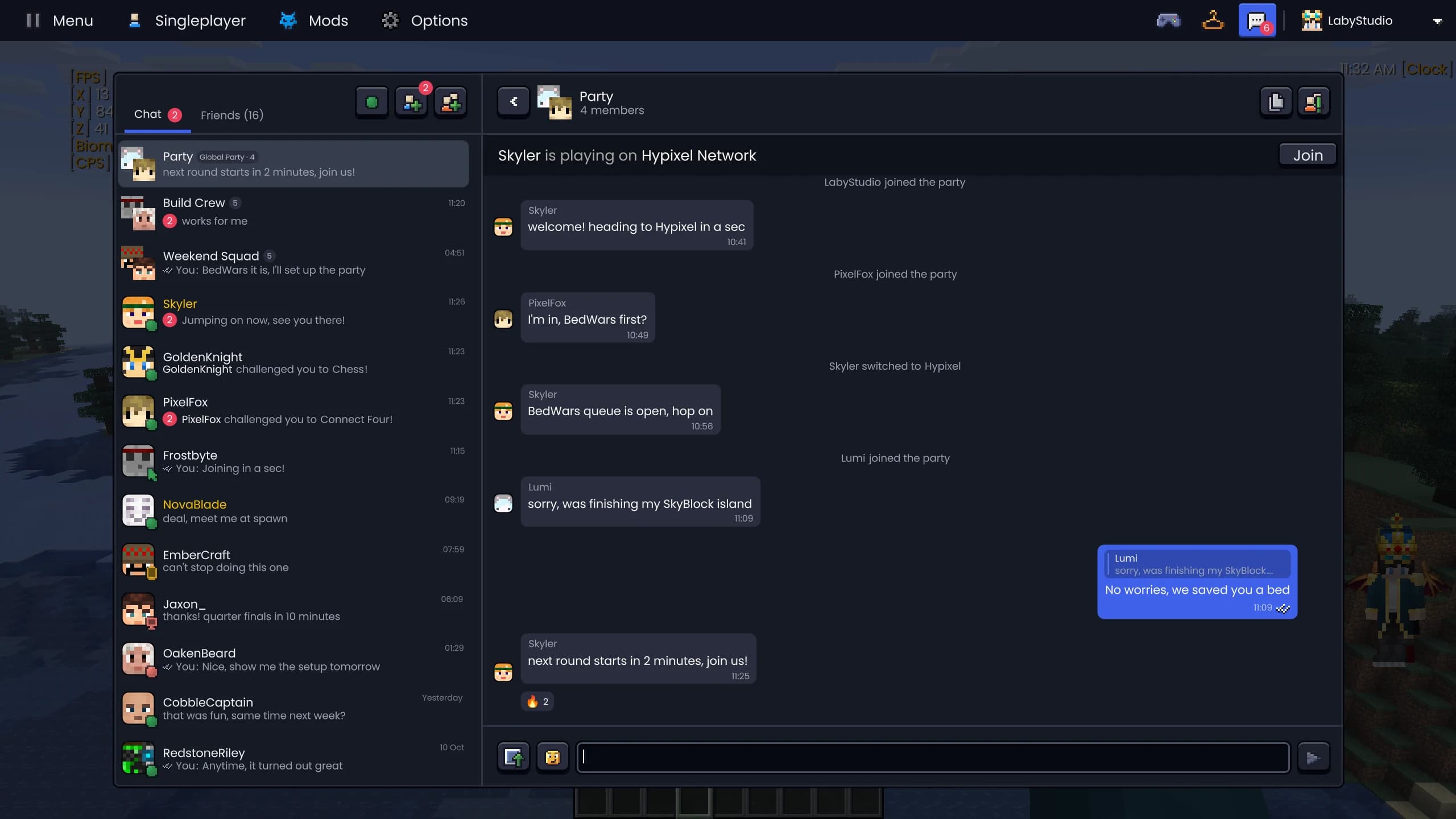
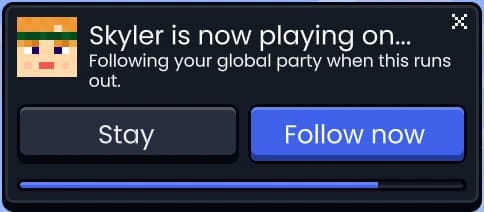
Client'ta global partinin sohbeti ve dünyanı açtığında her üyenin aldığı bildirim: Çubuk dolunca ya da Şimdi takip et ile hemen takip ederler.
Bağlantın mı koptu? Saniyeler içinde geri dönersin
Bir arkadaşının dünyasıyla bağlantın koparsa bağlantı kesildi ekranında bir Yeniden bağlan butonu çıkar. Otomatik yeniden bağlanmayı açarsan client, seçtiğin bekleme süresinden sonra kendiliğinden tekrar dener. Her sunucuda aynı şekilde çalışır.
- Varsayılan olarak kapalı, ayarlarda tek bir anahtar
- Bağlantı kesildi ekranında Yeniden bağlan butonu
- 5 ile 120 sn sonra kendiliğinden yeniden bağlanır (varsayılan 30)
- Sadece paylaşılan dünyalarda değil, her sunucuda çalışır
Bir şeyi göster, arkadaşların görsün
İşaretleyici tuşunu ata ve baktığın yere bir işaret bırakmak için ona bas. Aynı dünyadaki Laby arkadaşların onun bir sesle belirdiğini görür; böylece "şurada" sonunda bir anlam taşır.
- Varsayılan tuş yok, Kısayol tuşları altında bir tane ata
- 2 ile 10 saniye arası görünür (varsayılan 10)
- 100 bloğa kadar uzağa yerleştir
- Sana 64 blok mesafedeki arkadaşlar görür
- Herkese bir işaret, yenisi eskisinin yerini alır
- Mobları ve oyuncuları işaretlemek için sunucunun izni gerekir
Herkes geldiğinde de bir emote ya da spreyle selam ver. Aynı işaretleyici sunucularda da çalışır.
Sorular ve cevaplar
Tek oyunculu dünyamda arkadaşlarımla Minecraft nasıl oynarım?
Dünyanı Laby Client'ta aç, Esc'ye bas ve Arkadaşlarını Davet Et'e tıkla. Bir gizlilik modu seç, Dünyayı Paylaş'a bas, sonra Davet sekmesinden arkadaşlarını davet et ya da onlara adresini gönder. Sunucu listelerinden katılırlar, sunucu gerekmez.
Arkadaşlarımla oynamak için port yönlendirme ya da sunucu gerekiyor mu?
Hayır. Oyunun dışarıya, bir Laby relay'ine bağlanır ve arkadaşların onun üzerinden katılır; yani modem ayarlarını değiştirmez, sunucu kiralamazsın. Dünya her zamanki gibi bilgisayarında çalışır.
Arkadaşlarım IP adresimi görebilir mi?
Hayır. Herkes doğrudan bilgisayarına değil, Laby relay'i üzerinden katılır; yani oyuncular sadece relay'in adresini görür. IP adresin ve dolayısıyla yaklaşık konumun gizli kalır, sen de arkadaşlarının IP adreslerini görmezsin. Sadece LAN modunda ev ağındaki oyuncular sana doğrudan bağlanır.
Minecraft dünyama kaç arkadaşım katılabilir?
Sen dahil 6 oyuncuya kadar; Maksimum Oyuncular kaydırıcısıyla ayarlanır. Laby+ ile sınır 12'ye çıkar.
Arkadaşlarımın Laby Client'a ihtiyacı var mı?
Davetler, sunucu listesindeki Arkadaşlar sekmesi ve parti paylaşımı için evet. Herkese Açık bir dünyaya, Minecraft sürümü uyduğu sürece, herhangi bir sunucu gibi adresiyle de katılınabilir.
Ben oynamazken dünyam çevrim içi mi?
Hayır. Dünya senin bilgisayarında çalışır. Dünyadan çıktığında ya da Dünya Paylaşımını Durdur'a bastığında çevrim dışı olur ve içindeki herkesin bağlantısı kesilir. Bir arkadaşının bağlantısı koparsa Auto Reconnect onu geri getirebilir.
Dünya paylaşımı ücretsiz mi?
Evet. Paylaşım, dört gizlilik modunun hepsi, davetler, parti paylaşımı ve işaretler Laby Client içinde ücretsiz. Laby+ sadece oyuncu sınırını 6'dan 12'ye çıkarır.
Laby Client'ta daha fazla Minecraft modu
Laby Chat
Oyunda, launcher'da, uygulamada ve laby.net'te tek bir sohbet. Sunucular arasında seni takip eden partiler ve arkadaşlarına karşı mini oyunlarla.
Emote'lar ve Spreyler
Emote çarkıyla dans et, el salla ve floss yap, sanatını duvarlara sprey ile çiz ve Laby+ ile her gün yeni günlük emote'lar oynat.
Aletler
Arkadaşların için bir işaretleyici, bir mezura, inşa yüksekliği sınırı ve diğer elinde kalan meşaleler.
Envanter Modu
Her sandığı ara, shulker kutularının içine bak, slotları kilitle ve ekipmanın kırılmadan önce uyarı al. Tek modda 23 geliştirme.
PvP ve Savaş
Hit Markers, öldürme sesleri, düşük can uyarısı, TNT sayaçları, takım işaretleri, kalkan renkleri ve skoru tutan bir HUD.
Görseller
Elindeki eşyaları taşı ve boyutlandır, büyü parıltısını yeniden renklendir, ateşi alçalt, her parçacığı ayarla ve elitra ile arkanda buhar izleri bırak.
Dünyan, içinde arkadaşlarınla daha güzel.
Laby Client'ı indir, dünyanı aç ve Arkadaşlarını Davet Et'e bas.
Ücretsiz, Minecraft hesabın dışında hesap gerekmez. Tüm modlar zaten içinde.