Minecraft World SharingSeu mundo, aberto para os amigos.
Aperte Esc, clique em Convidar Amigos, escolha quem pode entrar e hospede. Seus amigos jogam no seu mundo do modo um jogador de qualquer lugar, sem servidor, sem mexer no roteador e sem nunca ver seu IP.
- Grátis
- Minecraft 1.8.9 até a versão mais recente
- Windows, macOS e Linux
Você decide quem entra
Escolha um de quatro modos antes de hospedar, ou troque enquanto joga. Somente para amigos é o padrão: só seus amigos da Laby entram. Público dá ao seu mundo um endereço que qualquer um pode adicionar à lista de servidores, Whitelist deixa entrar só os nomes que você adicionar, e LAN mantém o mundo na sua rede de casa.
- Público: um endereço como SeuNome.lan.laby.net
- Somente para amigos é o padrão
- Mundos públicos e só para amigos aparecem na lista de servidores dos seus amigos
- Convidar um amigo para um mundo com whitelist coloca ele na whitelist
- Troque de modo enquanto hospeda
- Os modos online precisam da sua conta do Minecraft e do Laby Chat, a LAN funciona sem
Uma tela para tudo que você hospeda
O botão Convidar Amigos no menu de pausa abre a tela Gerencie o Mundo. Defina o modo de jogo, a dificuldade e as trapaças para todos, escolha a privacidade e as vagas e aperte Hospedar Mundo. Enquanto você hospeda, as abas mostram quem está online, sua whitelist e os amigos que você pode convidar.
- Substitui o Abrir em LAN no menu de pausa
- Expulse jogadores, ou mude o modo de jogo deles com as trapaças ativadas
- Aba Whitelist: adicione jogadores pelo nome
- Aba Convidar: seus amigos da Laby online, um clique para cada
- Uma configuração de porta para jogadores na sua rede
- Parar de hospedar pergunta antes quando há jogadores online
Espaço para seis, ou doze com o Laby+
Defina quantos jogadores cabem no seu mundo, contando com você: de 2 a 6 de graça. Com o Laby+ o controle vai até 12, o suficiente para a galera toda.
- 2 a 6 jogadores de graça
- Até 12 com o Laby+
- Um mundo cheio recusa novos jogadores
- Com uma party, as vagas aumentam para caber todo mundo, até o seu limite
- Com o Laby+ você também pode convidar amigos para um servidor rodando no seu próprio PC

Sem servidor, sem configurar o roteador
O Abrir em LAN só chega à sua própria rede: o roteador barra todo o resto. O World Sharing contorna isso. Seu jogo se conecta para fora até um relay da Laby, do mesmo jeito que se conecta a qualquer servidor, e seus amigos se conectam ao relay. Nada para redirecionar, nada para alugar, e o mundo continua rodando no seu PC. E como todo mundo se encontra no relay, nenhum jogador pega seu endereço IP, e você também não vê o deles.
- Seu jogo se conecta para fora, então o roteador deixa passar
- Os amigos entram no seu endereço, o relay repassa eles
- Proteção de IP nos dois sentidos: ninguém vê seu IP, e você não vê o de ninguém
- Nenhum servidor para alugar ou configurar
- O mundo fica offline quando você sai dele
- Sem a conexão da Laby, ele volta para LAN
Sua party segue você até o seu mundo
Lidere uma party global no Laby Chat e abra seu mundo do modo um jogador: ele é compartilhado com a party sozinho. Seus amigos recebem o aviso para seguir e caem direto no seu mundo, sem endereço, sem convite.
- Compartilhado sozinho quando você lidera uma party
- Os membros seguem depois de uma contagem de 10 segundos
- As vagas aumentam para caber a party, até o seu limite
- Em um mundo com whitelist, os membros entram nela e saem de novo depois da party
- Um mundo que você deixa em LAN continua em LAN
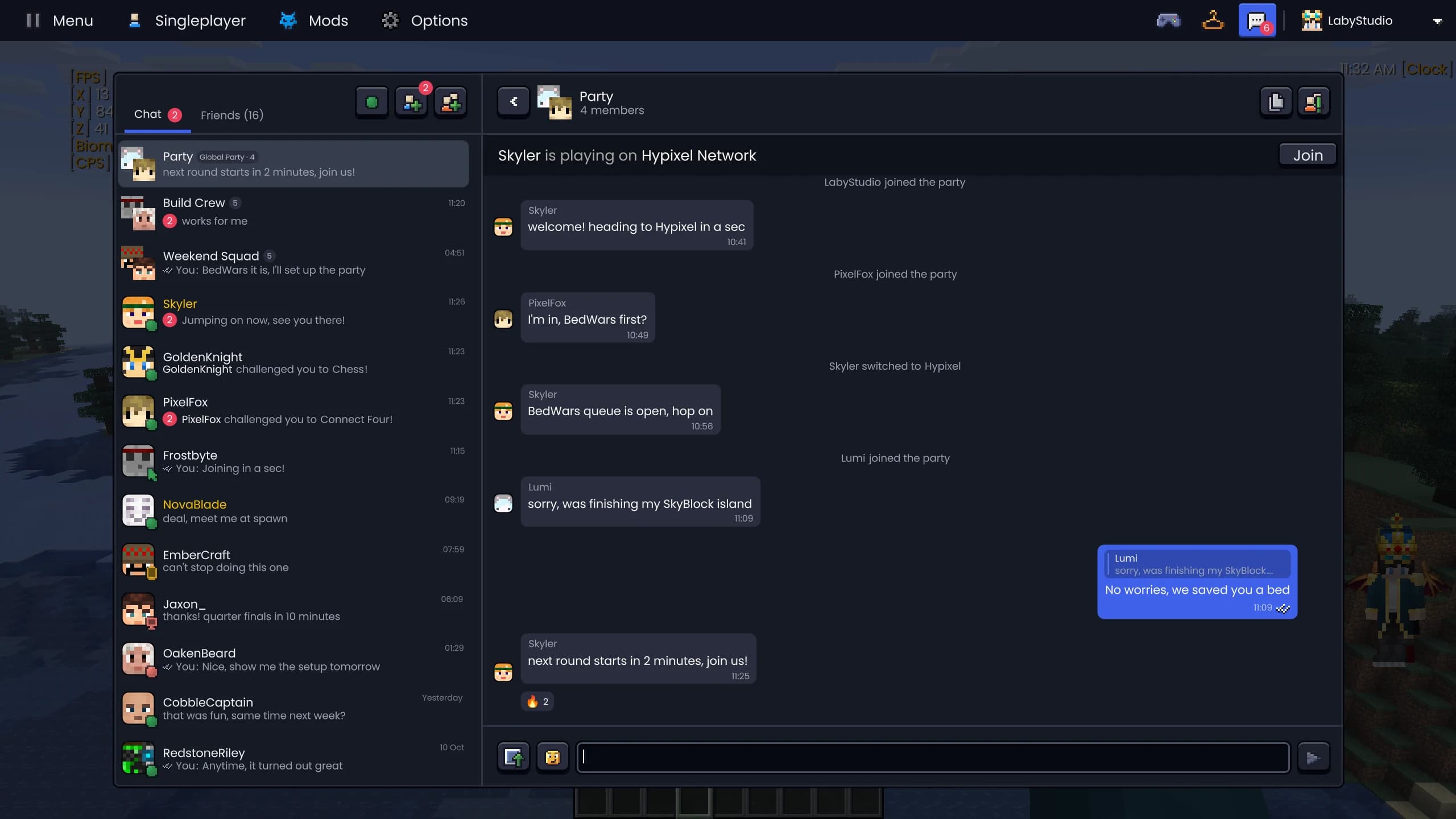
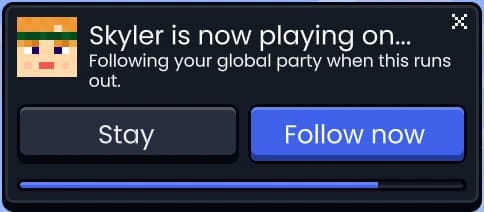
O chat da party global no client, e o aviso que cada membro recebe quando você abre seu mundo: eles seguem quando a barra acaba, ou na hora com Follow now.
Caiu? Em segundos você está de volta
Se a sua conexão com o mundo de um amigo cair, a tela de desconexão ganha um botão Reconectar. Ative o Reconectar Automaticamente e o client tenta de novo sozinho depois do tempo que você escolher. Funciona igual em qualquer servidor.
- Desativado por padrão, um botão nas configurações
- Um botão Reconectar na tela de desconexão
- Reconecta sozinho depois de 5 a 120 s (30 por padrão)
- Funciona em qualquer servidor, não só em mundos compartilhados
Aponte para algo e seus amigos veem
Defina a tecla de marcador e aperte para colocar um marcador onde você está olhando. Seus amigos da Laby no mesmo mundo veem ele aparecer com um som, então "ali" finalmente quer dizer alguma coisa.
- Sem tecla por padrão, defina uma em Atalhos
- Visível por 2 a 10 segundos (10 por padrão)
- Coloque a até 100 blocos de distância
- Amigos a até 64 blocos de você veem
- Um marcador por jogador, um novo substitui o antigo
- Marcar mobs e jogadores precisa da permissão do servidor
E quando todo mundo chegar, dê um oi com um emote ou um spray. O mesmo marcador também funciona em servidores.
Perguntas e respostas
Como jogo Minecraft com amigos no meu mundo do modo um jogador?
Abra seu mundo no Laby Client, aperte Esc e clique em Convidar Amigos. Escolha um modo de privacidade, aperte Hospedar Mundo e convide amigos pela aba Convidar ou mande seu endereço para eles. Eles entram pela lista de servidores, sem precisar de servidor.
Preciso abrir portas ou ter um servidor para jogar com amigos?
Não. Seu jogo se conecta para fora até um relay da Laby e seus amigos entram por ele, então você não mexe nas configurações do roteador e não aluga servidor. O mundo roda no seu PC como sempre.
Meus amigos conseguem ver meu endereço IP?
Não. Todo mundo entra pelo relay da Laby, nunca direto no seu PC, então os jogadores só veem o endereço do relay. Seu IP, e com ele sua localização aproximada, fica privado, e você também não vê o IP dos seus amigos. Só no modo LAN os jogadores da sua rede de casa se conectam direto com você.
Quantos amigos podem entrar no meu mundo do Minecraft?
Até 6 jogadores contando com você, definido no controle Número Máximo de Jogadores. Com o Laby+ o limite sobe para 12.
Meus amigos precisam do Laby Client?
Para convites, a aba de amigos na lista de servidores e o compartilhamento com a party, sim. Em um mundo Público também dá para entrar pelo endereço, como em qualquer servidor, desde que a versão do Minecraft seja a mesma.
Meu mundo fica online quando não estou jogando?
Não. O mundo roda no seu PC. Quando você sai dele ou aperta Parar de hospedar, ele fica offline e todo mundo lá dentro é desconectado. Se a conexão de um amigo cair, o Auto Reconnect pode trazer ele de volta.
O World Sharing é grátis?
Sim. Hospedar, os quatro modos de privacidade, convites, o Party Share e os marcadores são grátis no Laby Client. O Laby+ só aumenta o limite de jogadores de 6 para 12.
Mais mods de Minecraft no Laby Client
Laby Chat
Um só chat no jogo, no launcher, no app e no laby.net. Com parties que seguem você de servidor em servidor e minigames contra amigos.
Emotes e Sprays
Dance, acene e faça o floss com a roda de emotes, grafite sua arte nas paredes e, com o Laby+, use emotes diários novos todo dia.
Ferramentas
Um marcador para seus amigos, uma fita métrica, o limite de altura de construção e tochas que ficam na sua mão secundária.
Mod de Inventário
Pesquise em qualquer baú, espie dentro de caixas de shulker, trave slots e receba um aviso antes do seu equipamento quebrar. 23 melhorias em um só mod.
PvP e Combate
Hit Markers, sons de kill, aviso de vida baixa, timers de TNT, marcadores de time, cores de escudo e um HUD que conta o placar.
Visuais
Mova e redimensione os itens na mão, mude a cor do brilho de encantamento, abaixe o fogo, ajuste cada partícula e deixe rastros de vapor com seus élitros.
Seu mundo fica melhor com amigos dentro dele.
Baixe o Laby Client, abra seu mundo e aperte Convidar Amigos.
Grátis, você só precisa da sua conta do Minecraft. Todos os mods já vêm incluídos.