支持
常见问题
精选文章
Since the beginning of August we sign the launcher with a new certificate. The signature is valid and verified, but it is new, and Windows SmartScreen as well as the behavioural detection of some antivirus products treat anything new as unknown at first. That is why you may currently run into this:
- SmartScreen shows "Windows protected your PC" when you start the installer.
- Avast, AVG or Norton move the file
Update.exeto quarantine asIDP.Generic.
This is a false alarm. On VirusTotal not a single one of the 69 antivirus engines flags the file, and that explicitly includes Avast and Norton. What reacts is only the behavioural and reputation scoring, and that simply needs time and downloads before it settles.
How to tell you have the genuine file
Download the launcher only from laby.net. In the SmartScreen dialog, the publisher is shown as LabyMedia GmbH. If it says anything else, cancel and download again from our site.
This matters right now in particular: once people know that warnings about LabyMod are currently false alarms, they click them away faster, including on a file that did not come from us at all.
What you can do
- SmartScreen: click "More info", then "Run anyway".
- Avast, AVG, Norton: restore the file from quarantine and add an exception for the LabyMod folder. In Norton you can also click "Check for a new rating" in the alert window.
- Please do not switch off your antivirus entirely. A targeted exception is enough.
What we are doing
We have filed false positive reports with Avast and Norton, including the affected file. In our experience those take a few days to process.
For the SmartScreen rating Microsoft deliberately offers no submission process. It improves automatically as more users download and start the launcher. We therefore expect this to settle within a few days to a couple of weeks.
If it still does not work for you after that, get in touch.
常规
You can appeal a ban or mute by opening a support ticket.
A few things to know about the process:
- We can tell you the reason for your punishment, but we don't share chat logs, screenshots or internal evidence from moderation cases.
- If a staff member has already reviewed the case and considers the punishment justified, the decision stands, and timed mutes/bans are generally not shortened or lifted early.
- Please use the time to re-read our VoiceChat rules.
All current information and requirements for a partnership can be found at laby.net/partner, where you can also apply. Applications are reviewed internally, usually within a few days — you don't need to be present or online for the review.
Server partners — as a rough guideline we look for:
- the server runs in online / premium mode,
- an active and stable community,
- a server that is technically and content-wise solid,
- a recognizable plan for how you would integrate LabyMod meaningfully.
Content creators — applications are typically declined when reach/activity is still too low or LabyMod isn't clearly featured yet. We look for a stable audience, Minecraft as a core part of your content, and LabyMod actively shown in your streams/videos — just adding the logo is a good start but not enough on its own.
If you were declined, you're welcome to apply again once your channel/server has grown and LabyMod is more visibly integrated.
Our QA team is responsible for ensuring the quality of LabyMod. It tests new features, identifies bugs, and provides direct feedback to the development team to ensure a stable and optimized experience.
We generally only accept new members through referrals from existing QA team members or the LabyMod team. However, we are interested in specific hardware that is not yet represented in our QA team.
Therefore, we accept unsolicited applications. You can submit a short application text by sending it to our e-mail [email protected]. Your application should include the following information:
- A short introduction about yourself
- The hardware you use (especially relevant: GPU)
- Why you want to support our QA team
Please note that rejections do not necessarily have anything to do with you or your application. Actively creating original bug reports on our ideas panel helps us to get to know your working methods. We have only a limited number of spots in the QA team.
Please always make sure that you accept requests only from team members of our official servers. We never ask for a Microsoft verification code/password or your Microsoft/Minecraft account email address.
Official discord servers:
- LabyMod Discord Server (ID: 260471731809026048)
- Laby.net Discord Server (ID: 866584873451520010)
- LabyMod Partner Server (ID: 712997313873838120)
All other official channels:
- https://youtube.com/labymod
- https://twitter.com/LabyMod
- https://www.instagram.com/labymod/
- https://www.tiktok.com/@LabyMod
Your login streak counts the consecutive days you've been online with LabyMod. If your streak was reset even though you think you were online, you can request a review.
There is no self-service restore. Please submit a streak recovery request using the form at laby.net/support/streak. We'll then take a closer look at your streak and the reason it broke, and check whether a restoration is possible — this is decided case by case and isn't guaranteed.
You'll receive the result by e-mail. Please note that this review can take a little while.
We are sorry, but we can't help you in this case. We strongly advise against trading and warn of the danger that comes with moving an item before performing the move. We won't be able to do anything in this self-inflicted case because of that.
We are trying to make LabyMod available in as many languages as possible through the active support of our community. Many languages are already translated. If your language has not been translated yet, you can contribute here (translate.laby.net).
You can find all necessary information about this topic here (labymod.net/jobs).
You can find questions and answers concerning the development of LabyMod on our official documentation or the LabyMod developer’s Discord.
You can submit ideas or report bugs on our Suggestion / Bug Platform.
Please note that we do no longer support LabyMod 2 nor LabyMod 3. Please update your LabyMod client to the latest version in order to get official help! This is also required to support all recently added features and functionalities.
客户端
Since the beginning of August we sign the launcher with a new certificate. The signature is valid and verified, but it is new, and Windows SmartScreen as well as the behavioural detection of some antivirus products treat anything new as unknown at first. That is why you may currently run into this:
- SmartScreen shows "Windows protected your PC" when you start the installer.
- Avast, AVG or Norton move the file
Update.exeto quarantine asIDP.Generic.
This is a false alarm. On VirusTotal not a single one of the 69 antivirus engines flags the file, and that explicitly includes Avast and Norton. What reacts is only the behavioural and reputation scoring, and that simply needs time and downloads before it settles.
How to tell you have the genuine file
Download the launcher only from laby.net. In the SmartScreen dialog, the publisher is shown as LabyMedia GmbH. If it says anything else, cancel and download again from our site.
This matters right now in particular: once people know that warnings about LabyMod are currently false alarms, they click them away faster, including on a file that did not come from us at all.
What you can do
- SmartScreen: click "More info", then "Run anyway".
- Avast, AVG, Norton: restore the file from quarantine and add an exception for the LabyMod folder. In Norton you can also click "Check for a new rating" in the alert window.
- Please do not switch off your antivirus entirely. A targeted exception is enough.
What we are doing
We have filed false positive reports with Avast and Norton, including the affected file. In our experience those take a few days to process.
For the SmartScreen rating Microsoft deliberately offers no submission process. It improves automatically as more users download and start the launcher. We therefore expect this to settle within a few days to a couple of weeks.
If it still does not work for you after that, get in touch.
Laby is our official plugin for the Elgato Stream Deck. It controls LabyMod (voice chat mute, keybindings, screenshots, emotes, waypoints, chat, settings, HUD widgets, dials) and your laby.net account (friends, outfits, cosmetics, LabyCoins, notifications). It is free on the Elgato Marketplace; the overview is on laby.net/streamdeck.
What do I need?
- LabyMod 4 for Minecraft: Java Edition
- The Stream Deck software 6.9 or newer on Windows or macOS
- A free laby.net account for the account keys
- A Stream Deck + for the dial actions (FOV, brightness, volumes, minimap). Every other action works on any Stream Deck, including the Mini, the MK.2, the XL and the Neo.
How do I set it up?
- Install Laby from the Elgato Marketplace and drag the actions onto your keys.
- In LabyMod, open the settings, go to Utility and enable External Devices.
- Put the LabyMod Connection key on your deck and press it. A request appears in game, accept it. This happens once per device.
- For the account keys, press Laby Account. Your browser opens laby.net with a code, confirm it there. Your outfits, cosmetics, coins and friends appear on the keys.
The Connection key says "Not connected"
- Is LabyMod running and External Devices enabled under Settings > Utility? The plugin only finds the client while the switch is on.
- Press the Connection key once more. If the pairing was lost (for example after the setting was turned off and on again), a new request appears in game.
- The plugin and LabyMod have to run on the same computer. The connection is local and never leaves your PC.
- If a firewall asks about the Stream Deck software or Java, allow the connection on the local network.
A hotkey key does nothing
The key presses a LabyMod keybinding, so that binding must be set in LabyMod. Open the LabyMod settings, find the action (for example the VoiceChat mute or the emote wheel) and assign a key to it. The Stream Deck key then triggers exactly that binding. Only LabyMod and addon bindings are available, not the vanilla Minecraft controls.
The list of settings or hotkeys is empty or shows raw names
Open the key's settings once more after LabyMod has fully started. The lists are loaded from the client, and right after launch they can still be empty. The plugin refreshes them automatically when LabyMod finishes loading its resources, switches language or loads a resource pack.
The Waypoint or Minimap key is greyed out
These keys need the matching addon: Laby's Waypoints for the waypoint key and Laby's Minimap for the map on the touch strip. Install the addon from the LabyMod addon store; the key turns active as soon as the addon is loaded.
Does the screenshot get uploaded automatically?
No. The key saves the screenshot like the normal screenshot key. Upload to laby.net and copying the link are options in the key's settings and are off by default. If you enable the upload, the picture is published on laby.net like any other uploaded screenshot, without a confirmation in game, so leave it off if you do not want that.
Does the Friend key work while Minecraft is closed?
Yes. The Friend key reads the online status and the server of a friend from laby.net directly, so it works whenever your Stream Deck is on. Joining their server needs the running client, so that part is only offered while LabyMod is connected.
Does the plugin show me as online on laby.net?
No. The plugin connects to laby.net for the friend keys, but it always registers as offline. Your friends do not get a green dot just because your deck is on, and the plugin does not count as activity for "last seen".
The volume dial jumps or shows odd values
Some addon settings do not tell the plugin their range. Open the dial's settings and set a Range (minimum and maximum) yourself, for example 0 to 2 for the VoiceChat volumes. A press on the dial resets the value to the reset value you configure there.
How do I sign out or remove the pairing?
- laby.net account: select any account key in the Stream Deck software and click Sign out in its settings. You can also revoke the "Stream Deck" app in your laby.net dashboard.
- LabyMod pairing: select a client key, for example LabyMod Connection, and click Forget pairing in its settings. The next press on the Connection key asks you in game again. Turning off External Devices in LabyMod also blocks the plugin until you enable it again.
Which data does the plugin access?
In the game it only talks to your local LabyMod. On laby.net it uses your profile, your outfits and cosmetics, your LabyCoins balance, your notifications and your friend list, nothing else. It cannot make purchases, change your password or delete anything.
Do addons work with it?
Yes, without any extra setup. An addon's keybindings appear on the Hotkey key, its on/off and numeric settings on the Setting keys and dials, and its HUD widgets on the HUD Widget key. Dedicated keys like Set Waypoint and the Minimap on the touch strip exist for Laby's own addons; if you would like a key for another addon, tell us on the ideas board.
With chat filters, LabyMod can automatically react to specific chat messages: you can highlight messages with a colored background, play a notification sound, or hide them entirely. This is handy to never miss mentions of your name, or to get rid of spam.
1. Open the chat settings Open your chat and click the menu icon in the top right corner. Alternatively, you can simply right-click the chat.
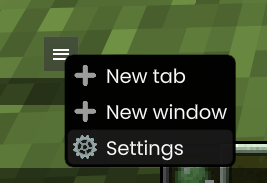
2. Open the filters of the chat tab In the chat tab settings you'll find the "Filters" entry. Click the gear icon to manage the filters of this tab.
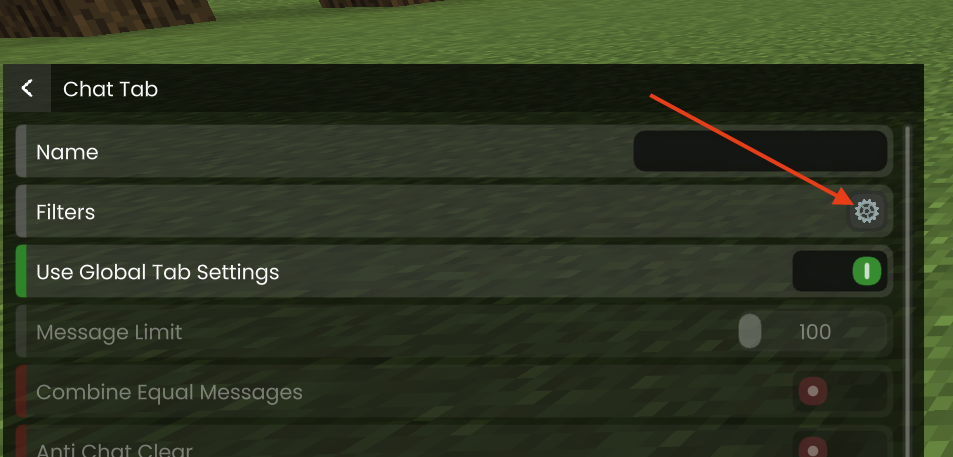
3. Create a new filter Create a new filter and give it a name. Under "Includes" you define which words a message needs to contain for the filter to trigger (e.g. your player name for a mention filter). With "Does not include" you can optionally exclude words.
Then choose what should happen to matching messages:
- Custom Background: the message is highlighted with a background color of your choice.
- Play Sound: you'll additionally be notified with a sound.
- Hide message: the message won't be shown in your chat at all.
- Case sensitive: matching will respect upper and lower case.
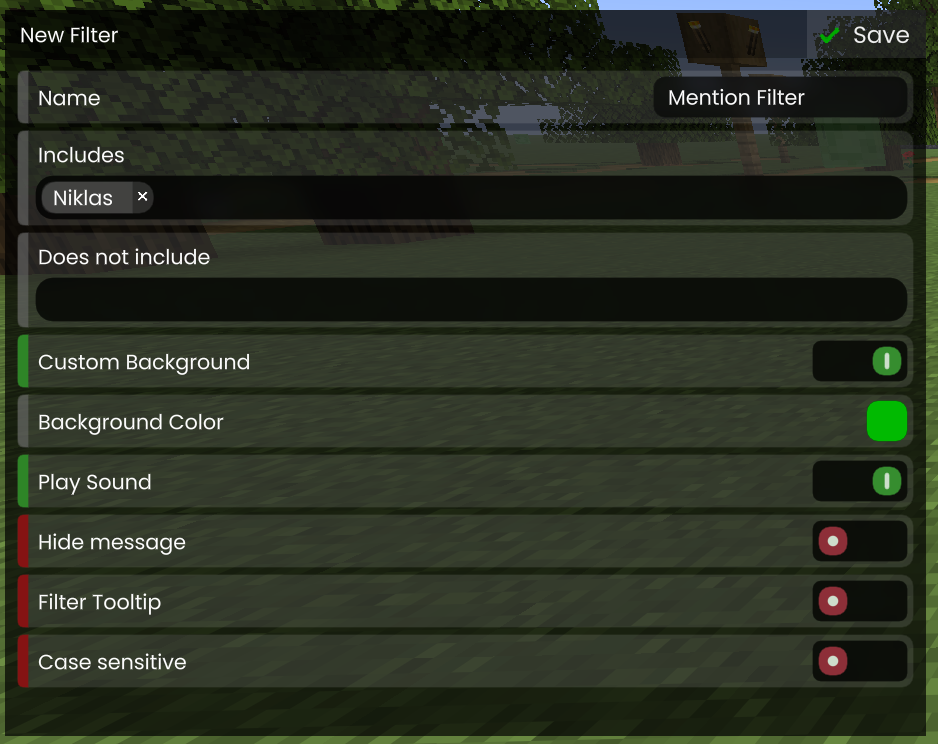
Save the filter via the "Save" button in the top right corner and you're done! You can create as many filters as you like and edit or delete them at any time.
Beta keys for the new Laby Client (LabyMod 5) were handed out in person at Gamescom 2025 and are no longer available.
At the moment we're not handing out any further beta access. There may be more opportunities in the future, so keep an eye on our official announcements (Discord & social media) rather than requesting a key via a ticket — we're unfortunately not able to grant keys on request.
Our server blocks connections that appear to come from a VPN, proxy or hosting IP. Many players who are sure they "don't use a VPN" are still flagged because of something running in the background, most commonly:
- Cloudflare WARP (1.1.1.1 app) — this is detected as a VPN.
- A mobile hotspot / mobile data connection (carrier CGNAT).
- Special DNS or network tools, proxies or firewalls.
Fix: turn off WARP/VPN/proxy tools and connect through your normal home internet (ISP) connection. A previous session from a WARP/VPN login can linger for a bit — fully log out and back in, and it should clear.
If you've disabled everything and are still blocked, contact us with your Minecraft username (a screenshot of the error and your ISP also help) and we'll unblock you.
First check whether shaders or other mods are the cause: black or invisible cosmetics are very often triggered by a shader. Try disabling your shaders/mods and look again.
If the cosmetics are still shown black without shaders and mods, a clean reinstall usually fixes it, as it removes corrupted files or broken settings:
- Fully close LabyMod (make sure no Minecraft/LabyMod process is still running).
- Open your
.minecraftfolder and delete theLabyModsubfolder. - Reinstall LabyMod with the current installer/launcher.
It's a good idea to back up your worlds/screenshots from .minecraft beforehand, just in case. If the problem persists afterwards, contact us with your latest.log.
The Watch Party shows official broadcasts through what works much like a built-in web browser — LabyMod does not stream, host or distribute any content itself. It can only display the official streams that are freely and publicly available in your own country.
If you see a message like "not available in your country", the official broadcast for your region is geo-blocked by the broadcaster (for example beIN), or there is no free public channel for your country. Unfortunately we cannot unblock, bypass or add such streams — these restrictions are set by the rights holders, not by us.
You can let us know which public channel is available in your country and we'll forward the request, but we can't promise it can be added.
Normally, you should be able to open any Lootbox ingame in LabyMod 4. There should be a "Lootboxes" button in the lower right corner of your pause menu. I don't see that button, what can I do?
Make sure you're connected to the LabyConnect chat. To do this, head to the "Chat" tab in the navigation bar and click on "Connect". Also, please make sure the option "Lootboxes" is enabled in the LabyMod settings. (ESC -> LabyMod -> Lootboxes -> ON)
The menu does not show the Lootbox I just received
Here are a few things you can try to do:
- Actively disconnect from the LabyChat by right-clicking your username in the LabyChat and hitting "Disconnect" and then try to reconnect.
- Restart your game
- Try starting a different Minecraft version
- Restart your pc If you still cannot see your Lootbox, please contact our support.
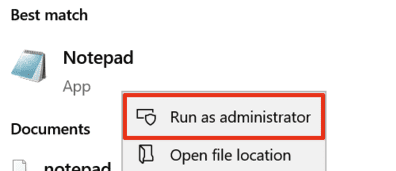
A software you installed to your system added some entries to your system hosts file that block the connection to XBOX services which the Minecraft/Microsoft login needs.
To remove these entries, you need to edit your systems hosts file:
-
Open the editor as an administrator

-
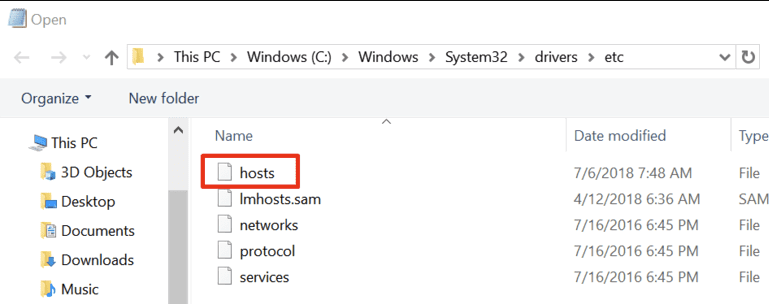
Open the following file within the editor:
C:\Windows\System32\Drivers\etc\hosts -
Remove the lines that have
xboxorlive.comand127.x.x.xin them -
Save the file
-
Restart the LabyMod launcher and try again
Our LabyMod Launcher has the ability to manage all of your mods and addons.
To access this feature, click on the puzzle icon in the top right corner of the Launcher.

You can create a new modpack by clicking the button in the bottom left corner and name it the way you want. On the right hand side, you can see a Minecraft version selection which also shows which Minecraft versions support which modloader. Click on the desired version and select the modloader (Fabric/Forge).

Once you've created the modpack, navigate to either the Fabric or Forge Mods tab depending on which modloader and Minecraft version you want to play on. You can also add LabyMod addons to your modpack through its own tab.
 You'll find every mod which is listed on Modrinth. If you find a mod you want to use, click on it and select to which Modpack you want to add it to. You'll find a complete list with every modpack in it categorized whether it is compatible with the modpack or not. To really add it, confirm it by clicking on the "Add to Modpack" button.

Now after adding all mods, the only thing left to do is starting the modpack. To do that, open the version selection and the version you selected previously. You'll find a list with all of your modpacks in the bottom right corner. Select your modpack you've created earlier and launch LabyMod.

In the "Manage Modpack" tab, you can find every mod you've added to the selected modpack.
The color on the right hand side mean on what modloader they base on (Gray -> Mod, Blue -> LabyMod Addon).
By selecting a mod and clicking on "Remove from Modpack", you can, well, remove it from the modpack.

To add mods not listed on Modrinth, you can manually add the mod file to the mod folder. You can find the mod folder by clicking on "Open Fabric (or Forge) Directory" in the Modpack manager.

Please keep in mind that a lot of mods that are modifying the same area of the game are incompatible with LabyMod. Do not report those issues to our staff as in most cases it's not possible to fix these issues on our end. Also make sure to install the mods for the right Minecraft version.
General Please check whether you have the latest LabyMod (Launcher) version installed!
atio6axx.dll & ig7icd64.dll Please try reinstalling the driver for your graphics card/unit. You can find these drivers on the website of the manufacturer.
ETIMEDOUT & ECONNRESET Please have a look at whether you can access the given link in your browser. If not, there's something wrong with your internet connection. Please try using a VPN.
DownloadRequiredWhileOfflineError Please check whether you can access the website https://1.1.1.1. If not, your ISP probably blocks access to it. Please try using a VPN.
DiscardVirtualMemory Seems like you're using Windows 7/8/8.1. Sadly, Electron, the software we use for our launcher, dropped the support for those versions some time ago. You sadly cannot use our launcher, but have to use the Minecraft Launcher or (forks of) MultiMC.
Still crashing or black screen? Test with all mods disabled first — a single incompatible mod often causes launch crashes or a black screen. Many launch issues are also fixed by switching to the Snapshot channel and updating to the newest build.
If it still happens, please send us your log: in the LabyMod Launcher click Log → Upload log, or for the vanilla launcher open .minecraft/logs/latest.log, paste it at paste.laby.net and share the link with us together with your exact Minecraft/LabyMod version.
LabyMod 4 was designed to improve your overall performance in comparison to LabyMod 3. If you are encountering any issues, please try the following:
Install Flux:
We have created our very own and LabyMod-optimized performance addon Flux. If you haven't done it yet, please make sure to install & enable Flux. To enhance your Flux experience even further, please enable the setting "Entity Culling":

Install Optifine If you are still having trouble with your performance even after installing Flux, playing around with your OptiFine settings can help. Please make sure that the following performance settings (you can find those via Options -> Video Settings -> Performance) are enabled: Fast Render Chunk Updates Render Regions Smart Animations Smooth World Fast Maths Dynamic Updates Lazy Chunk Loading Please note that you have to install the OptiFine addon in order to change these settings.
Use the vanilla theme: If all of the above does not show any effect, please try to use the vanilla theme. To enable it, please go to your LabyMod settings -> Appearance -> Vanilla.
Remove all addons one by one: If nothing has shown any effect yet, please try to remove all addons one by one in order to find out if any of them is using too much performance. Please note that you may have to restart your game in order to remove certain addons.
Disable the Dynamic Background: For better performance in the main menu, please try to lower the quality or disable the shader in the Dynamic Background settings. You can find these settings at "LabyMod settings -> Appearance -> Dynamic Background settings". If none of these show any effect, please disable the dynamic background entirely.
For the unlikely case that your performance still is not doing well, feel free to reach out to us on our ideas platform: https://laby.net/ideas
We're always happy to receive feedback! When creating your idea, please make sure to include the following information: How is your performance doing in comparison to LabyMod 3? What components does your PC have? What have you tried so far? How many FPS are you achieving on average in LabyMod 4? Every detail helps us to understand & fix your issue faster.
If you have landed on this page, it indicates that you are currently unable to log in to the LabyMod launcher using your Microsoft account. Based on our observations, this issue arises when you possess a Microsoft account that is below the age of 18 and is not part of a family plan.
There are currently two possible solutions available:
- Sign in to the LabyMod launcher using an adult Microsoft account. An adult Microsoft account refers to an account where you are 18 years of age or older. You can verify this by checking the birthdate in your account settings.
- Alternatively, you can include your Microsoft account in a family plan supervised by one of your parents. You can find more information about Microsoft family plans and how they operate with parental involvement here: https://account.microsoft.com/family/.
We're currently working on implementing another authentication method which will support Microsoft accounts that have not reached legal age yet.
With the newest Minecraft Launcher update, the way versions are started has changed.
To fix the installation profiles, you just need to download and run the installer again. Don't worry, your LabyMod & Addon settings will not be lost. You may only need to reinstall the addons from the Addon store.
Resolve microphone/voice chat issues on macOS
In certain cases, problems can occur due to the selected IP address. This can be solved by adding an argument in the LabyMod/ Minecraft Launcher.
LabyMod Launcher Navigate into the settings and find the "CUSTOM JVM ARGUMENTS" field. Go to the end of the line and add the following: -Djava.net.preferIPv4Stack=true Then, just close the settings and try again.
Minecraft Launcher
Go into Installations, edit the LabyMod profile and click on 'more options'. A space must be added at the end of the JVM arguments, followed by the following:
-Djava.net.preferIPv4Stack=true
Finally, save the changes and restart your game.
The different icons all represent a role:
White = LabyMod 3 User (only visible in LabyMod 4) Blue = LabyMod 4 User Yellow = LabyMod+ Turquoise = LabyMod Translator Turquoise = LabyMod Cosmetic Creator Turquoise = LabyMod Quality Assurance Purple = LabyMod Partner Red = LabyMod Staff
To reinstall LabyMod, please delete the following directories from your .minecraft folder:
Important: Please note that if you completely reinstall LabyMod, your settings, addons and widgets will be completely deleted!
.minecraft\labymod-neo *.minecraft\versions* (Any folder that has LabyMod in the name) .minecraft\libraries\net\labymod
After you have done that, please download our latest (!) installer from our website and install LabyMod as usual: https://laby.net/client
If you need more help with this, it might be helpful to watch our video tutorial
If you see a player with an offending cloak, please feel free to report them via the ingame command /capereport NAME. The reported cloak will eventually be removed by us.
网站
You can delete your LabyMod account and personal data yourself at any time in accordance with the GDPR (Art. 17).
Delete your account yourself:
- Open your security settings and scroll all the way down to the "Delete account" section.
- Click "Delete account" and follow the steps.
- We send a 5-digit verification code to the e-mail address linked to your account. Enter the code to confirm your identity. If you have two-factor authentication enabled, you will be asked for it as well.
- After confirmation your account is scheduled for deletion and permanently removed after a 7-day waiting period. Within that period you can cancel the deletion at any time via the link in the confirmation e-mail or in your security settings.
Tip: If you would like to keep a copy of your data first, you can download it via the data export in your settings.
Please make sure you still have access to the e-mail address connected to your account, otherwise we cannot confirm ownership.
If you have this issue, please log out of our website and log back in again. After doing so, your LabyMod+ status on your dashboard should be updated.
Mojang removed public access to the Minecraft Account Name History API. We store this previously publicly available data in our database to reduce loading times and significantly improve the user experience.
Since this change, we've received several requests to be able to edit the name history for individual accounts. We addressed this immediately and added two options to the website. You can now hide names yourself or remove them completely from our database by logging in and navigating to your profile on the dashboard. This is needed to verify the rightful account ownership.
The same applies to your Skin History: log in at laby.net/dashboard with your Minecraft or Microsoft account and open Dashboard → Textures (for skin history) or Dashboard → Profile (for name history).
In the Name History section you can hide individual past usernames, or fully remove them via the yellow "fully delete names from your name history" button. In the Skin History section you can likewise remove skins or adjust their visibility. If you can't log in, or something is still visible afterwards, just contact us.
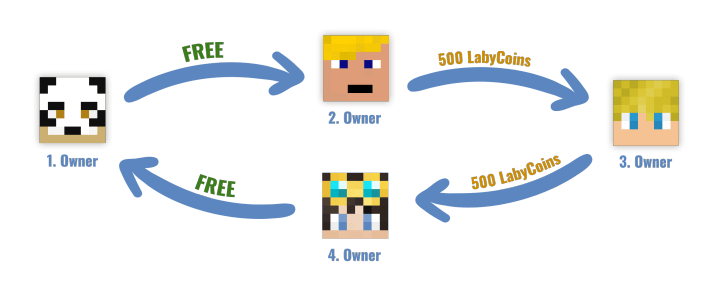
We charge a small fee in the form of LabyCoins for moving an item to another account. The aim is to strengthen security and protect users from potential dangers. In addition, the move feature is primarily for private transfers between a main and secondary account. In general, we strongly advise you not to trade, especially on external platforms. For this reason, transfers from or to the original recipient of the item remain possible free of charge and without a limit.
LABY.net - How can I add data to my server page?
To register on our website or to reset your password, you will have to log in through Minecraft.
For that, please start the latest LabyMod version and make sure you're connected to the LabyChat. Once that's done, please click on your head in the top-right corner of the main menu of Minecraft.
You should be redirected to our website with either the registration form or your dashboard.
If you want to register, please fill out the registration form and confirm the registration via e-mail. After, you should be able to log in.
If you want to reset your password, just click on Change password and set a new password. After, confirm your password change via e-mail and you should be able to log in with your new password!
To link your Discord account, add Discord to your external services in your Dashboard. If you are expecting a rank (like LabyMod+), it will take a short time until it is assigned to you on the Discord.
You can simply add images to design your own cape and select this cape using the Laby Cloak Creator. You can access the Cape Creator by clicking on "Edit texture" on the Cloak cosmetic. Dashboard.
Not only that, but you can also create a texture in external programs and upload it on your Dashboard.
You can find a selection of pre-made textures to choose from at laby.net.
You can download cloaks from other users here (labymod.net/api/get-cloak) and bandanas here (labymod.net/api/get-bandana).
You can manage your Cosmetics and Emotes on our Dashboard.
LabyCoins which you have purchased can be moved to different users. LabyCoins that you have received as a gift, or won, cannot be moved.
LabyCoins are a "currency" in the LabyMod-Shop. However, there are also some other ways for you to earn LabyCoins, for example collecting your daily reward!
You can change the order of your emotes on the Dashboard.
商店
Where to find them: Lootboxes are opened in-game. Start your Minecraft client, join a server and open the pause menu — you'll find the Lootbox button in the bottom-right corner. Newly granted items sometimes only appear after a client restart, so try restarting first.
Good to know:
- Purchases paid with LabyCoins are excluded from free Mystery Ball promotions.
- For event balls (e.g. soccer balls) collected on LabyWorld, we may ask for your in-game name and a screenshot of the scoreboard to verify your count.
If items are genuinely missing after a qualifying purchase, contact our support with your in-game name — we can grant the missing boxes/balls manually (and, if needed, convert already-opened Mystery Eggs back into balls).
We did this on purpose. You could use a discount twice if promocodes reduced the price of LabyCoins. We decided this because of that reason.
Products should be added to your account immediately after a successful transaction. However, sometimes it can take a while before we receive the payment. If you have not received your product after 30 minutes and the item does not appear in your dashboard, please check if the money has been charged from your account. If it has, please check if you have received an email from us with a transaction ID, then please contact our support team so we can resolve the issue.
Some payment errors have a specific cause:
- "account_locked" — our anti-fraud system temporarily locked your account because it detected unusual purchase behavior (for example a previous payment that was cancelled or charged back). You can't unlock it yourself; contact our support and, if everything is in order, we'll remove the lock so you can buy again.
- "Promocode expired" — an expired promo code is still in your cart. Remove the code on the cart/checkout page before paying.
If the reason for the error is not clear, please contact our support.
The Daily Emotes are generated randomly every day. We have no influence on it. Therefore it is random and we do not choose the emotes.
安全
If you've lost access to your two-factor authentication (lost authenticator app, new phone, missing backup codes), a reset is possible — but for security reasons we have to verify your identity first, so it's never automatic.
Please submit the dedicated request at laby.net/support/two-factor and fill in all requested information as accurately as possible. An estimate of the activation date is fine if you don't know it exactly, and you can attach proof (e.g. screenshots) to support your request — the more detail, the easier it is for us to verify you.
We'll review your request and contact you about the outcome by e-mail, which can take a few days. Important: if you can no longer determine the e-mail address linked to the account, we unfortunately cannot restore access, since we're unable to verify ownership.
{ "faq_entries.suspicious_activity.introduction": { "list": false }, "faq_entries.suspicious_activity.step_1": { "list": true }, "faq_entries.suspicious_activity.step_2": { "list": true }, "faq_entries.suspicious_activity.step_3": { "list": true }, "faq_entries.suspicious_activity.step_4": { "list": true }, "faq_entries.suspicious_activity.step_5": { "list": true }, "faq_entries.suspicious_activity.support": { "list": false } }