Minecraft just got real keys.
Mute your mic, fire Minecraft keybindings, turn the FOV with a dial, swap outfits and toggle cosmetics. Every key shows the live state, no window switching.
 NiklasConnected
 OutfitApply outfit
 56,760LabyCoins
Turn the dials, press the keys. The sky reacts.
Talks to Laby Client directly
The plugin pairs with the running client over your local network, once. From then on every key mirrors the client: mute state, setting values, the FOV. Press a key and Laby Client reacts exactly like it does to the real keyboard shortcut.
The plugin connects through External Devices, which you switch on once in the client. External Devices →
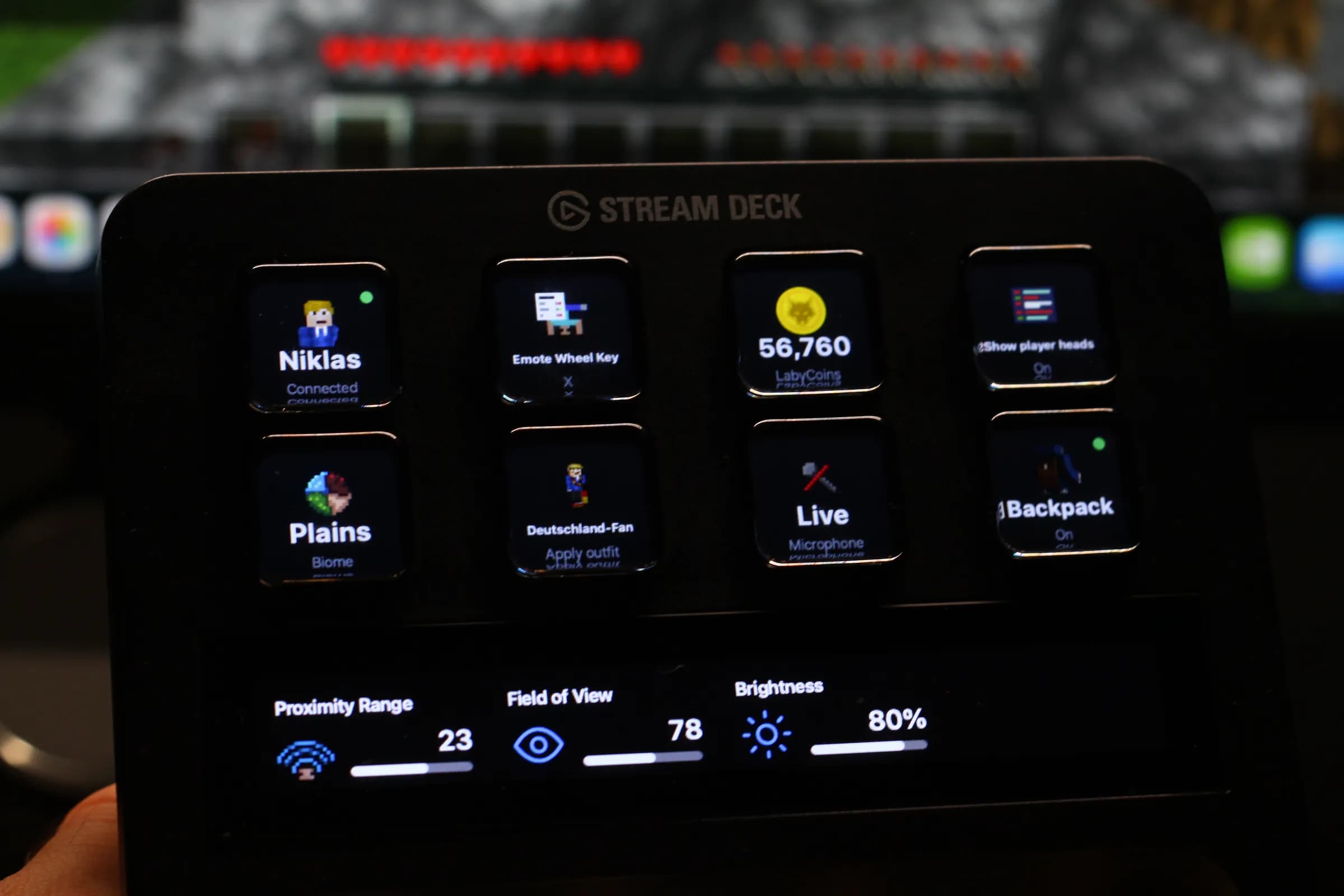
The plugin on a Stream Deck +, connected to the client next to it.
Your Minecraft HUD, on your keys
Every text widget Laby Client can draw on the HUD is a key here: FPS, coordinates, biome, clock, ping, an addon's widget. The client streams the values a few times per second, the key redraws when a value changes, with the widget's own icon.
Widgets you hide on the HUD still work here, so a key can replace the overlay.
laby.net without the browser
Sign in once with a code, then your account lives on the deck: outfits, cosmetics, coins and notifications, straight from laby.net.
OutfitApply outfitApply outfit
One key per saved outfit, with its render on the key. Switch your whole look between rounds.
Toggle cosmetics
Turn a single cosmetic on or off, shown with its product picture and its current state.
0LabyCoinsLabyCoins at a glance
Your balance on a key, refreshed on its own.
Notifications
An unread counter that opens your notification centre or marks everything read.
Save the looks for your keys as outfits in the wardrobe. Outfits in the wardrobe →
Three steps, then it just works
- 01
Install the plugin
From the Elgato Marketplace, like any other Stream Deck plugin. Drag the Laby actions onto your keys.
- 02External Devices
Enable External Devices
Flip the External Devices switch in the Laby Client settings. It sits in the list like any other mod.
- 03External Devices
A Stream Deck wants to connect to Laby Client.
AcceptDenyPair with Laby Client
Press the Connection key and accept the request in game. Once.
- 04Confirm device7K4M2QMatches the code on your deck?Confirm
Sign in to laby.net
Press the Account key and confirm the code in your browser. Your keys fill with your outfits, cosmetics and coins.
- Laby Client with External Devices enabled
- Elgato Stream Deck software 6.9 or newer on macOS or Windows
- A Stream Deck+ for the dials; every other action works on any Stream Deck
Put Minecraft on your Stream Deck
Free, open for every Laby player, built by the Laby team.
Get it on the Elgato Marketplace